ADOPE / Works

Floatly

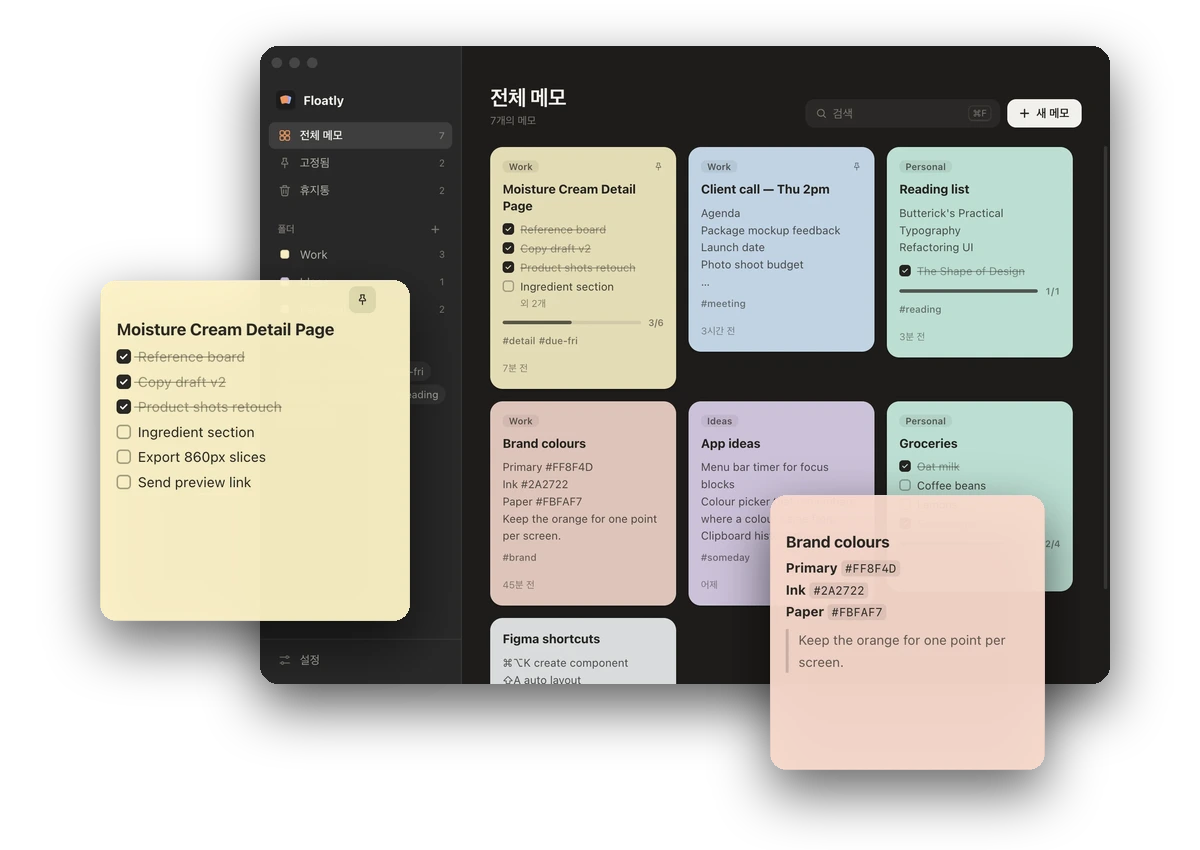
다른 창 위에 띄워두는 맥용 메모 앱입니다. 메모를 항상 위에 고정하고, 투명하게 하거나 클릭이 메모를 통과하게 해서 작업 화면을 가리지 않게 했습니다. 기획부터 디자인, Electron 개발까지 진행했습니다.A Mac sticky-notes app that floats above other windows. Notes can stay on top, turn see-through, or let clicks pass straight through, so they don't get in the way of the work underneath. I handled planning, design and development in Electron.

macOS · 2026
adopeFileEditViewThu 2:14 PM
Moisture Cream — Detail Page
HERO
TEXTURE
INGREDIENTS
HOW TO USE
REVIEW
FOOTER
Moisture Cream Detail Page
  • Reference board
  • Copy draft v2
  • Hero retouch
  • Ingredient section
  • Export 860px slices
#detail#due-fri
Brand colours
Brand colours

Primary #FF8F4D
Ink #2A2722
Paper #FBFAF7

Keep the orange for one point per screen.
#brand
01 — Float

작업 화면 위에 그대로Right above the work

메모 하나하나가 따로 떠 있는 창이라 원하는 자리에 두고 크기를 바꿀 수 있습니다. 핀으로 고정한 메모(⌘P)는 다른 앱을 쓰는 동안에도 맨 위에 남습니다. 버튼은 마우스를 올렸을 때만 나타나고, 켜져 있는 기능만 계속 보입니다.Every note is its own window, so it can sit anywhere at any size. Pinned notes (⌘P) stay on top while you work in other apps. Buttons only appear on hover; whatever is switched on stays visible.

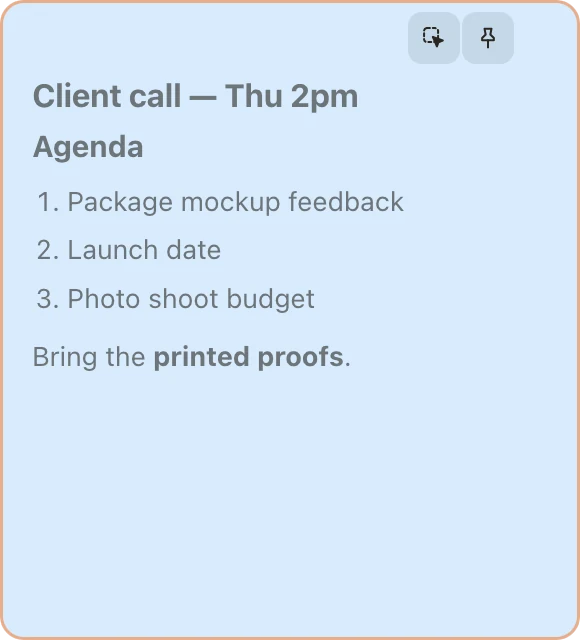
Note in click-through mode: dimmed body and an orange outline
클릭 통과Click-through켜면 본문이 흐려지고 주황 테두리가 생깁니다. 메모 위를 눌러도 아래 창이 클릭되고, 상단 버튼만 메모가 받습니다.The body dims and an orange outline appears. Clicks go to the window below; only the header buttons still belong to the note.
Note at 65% opacity with its tool panel open, the page behind showing through
투명도Opacity30%까지 낮출 수 있습니다. 글자는 그대로 두고 바탕만 투명해져서, 아래 화면을 보면서 읽을 수 있습니다.Down to 30%. Only the paper fades, not the text, so the screen below stays readable through it.
Note collapsed to a single title bar
접기Collapse상단을 더블클릭하면 제목 한 줄로 접힙니다. 다시 펼치면 원래 크기로 돌아옵니다.Double-click the header to fold the note to its title. Unfold it and it returns to its old size.
02 — Write

적을 때와 볼 때Writing and reading

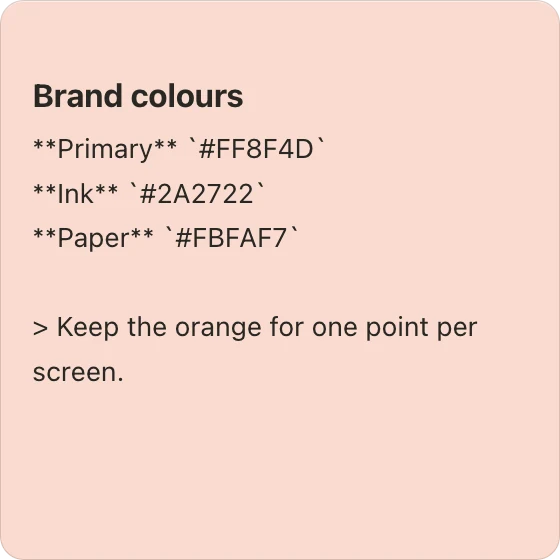
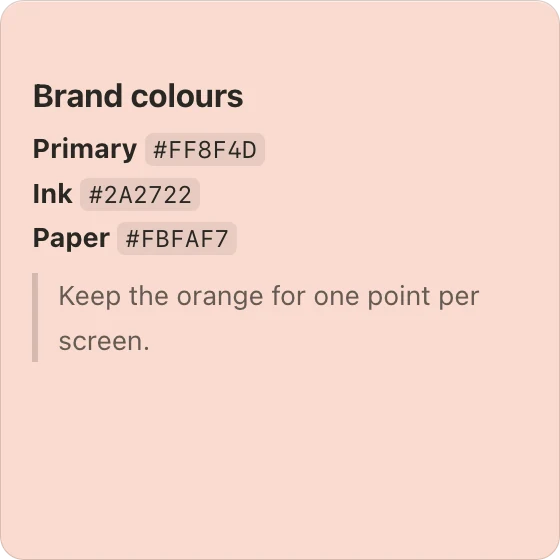
마크다운으로 적으면 정리된 모양으로 보여주고, 메모를 누르면 다시 편집 상태로 바뀝니다. 체크리스트는 보기 상태에서 바로 체크할 수 있습니다. 링크는 브라우저에서 열립니다.Write in Markdown and the note shows it formatted; click the note to edit again. Checklists can be ticked while reading. Links open in the browser.

Brand colours note in edit mode showing raw Markdown
편집Edit굵게, 기울임, 취소선, 인용, 코드, 목록, 체크리스트를 씁니다. esc로 편집을 마칩니다.Bold, italic, strikethrough, quotes, code, lists and checklists. esc leaves edit mode.
The same note rendered: labels in bold, hex codes as code chips, a quote
보기Read같은 메모를 정리된 모양으로 보여줍니다. 빈 메모는 바로 편집 상태로 열립니다.The same note, formatted. An empty note opens straight into editing.
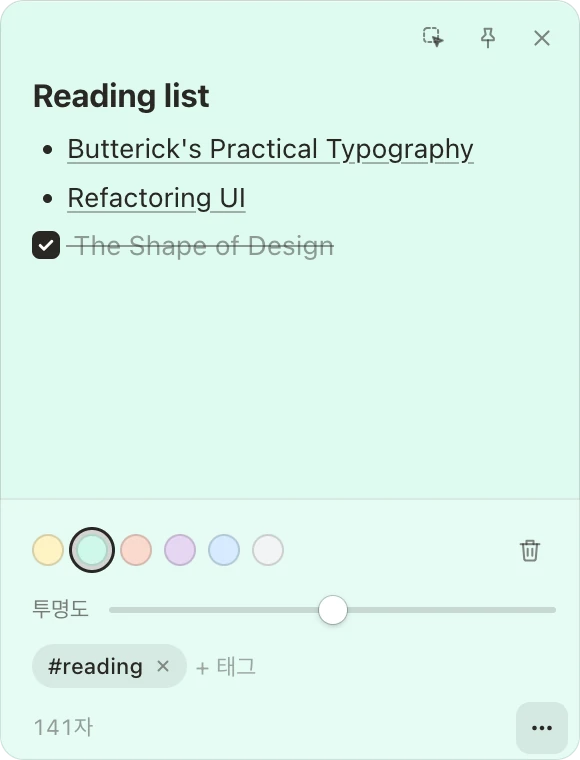
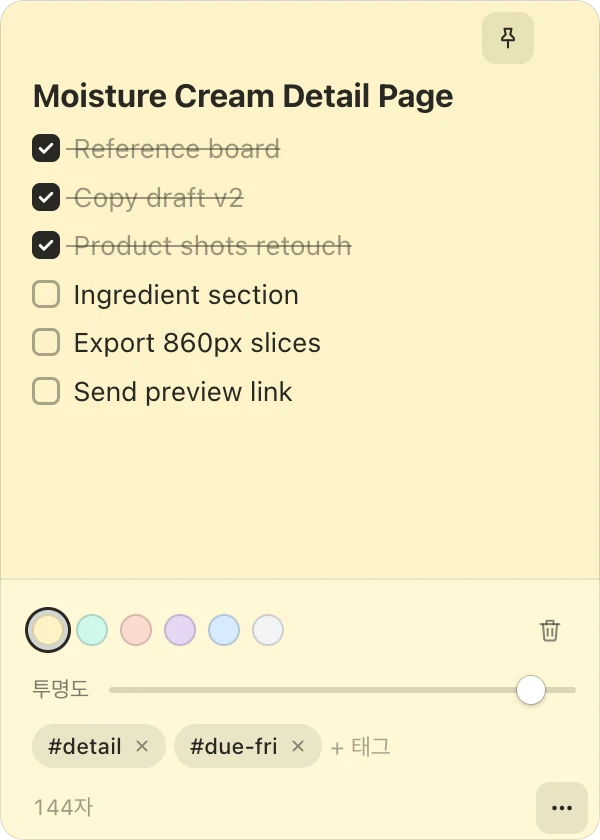
Note tool panel: six colour dots, delete, opacity slider, tags and character count

메모 아래쪽 버튼을 누르면 꾸밈 도구가 열립니다. 평소에는 숨겨두어 메모에 내용만 보이게 했습니다.The button at the bottom of a note opens its tools. They stay hidden otherwise, so a note shows only what's written on it.

색 여섯 가지Six colours노랑 · 민트 · 피치 · 라벤더 · 스카이 · 그레이. 폴더 안에서 만든 메모는 폴더 색을 따릅니다.Yellow, mint, peach, lavender, sky and grey. Notes made inside a folder take the folder's colour.
태그Tags입력하고 엔터나 쉼표로 붙입니다. 대시보드에서 태그로 걸러 볼 수 있습니다.Type and press return or a comma. The dashboard can filter by them.
글자 수Character count아래쪽에 글자 수를, 마우스를 올리면 단어 수를 보여줍니다.Characters at the bottom, words on hover.
03 — Dashboard

모든 메모를 한 화면에Every note on one screen

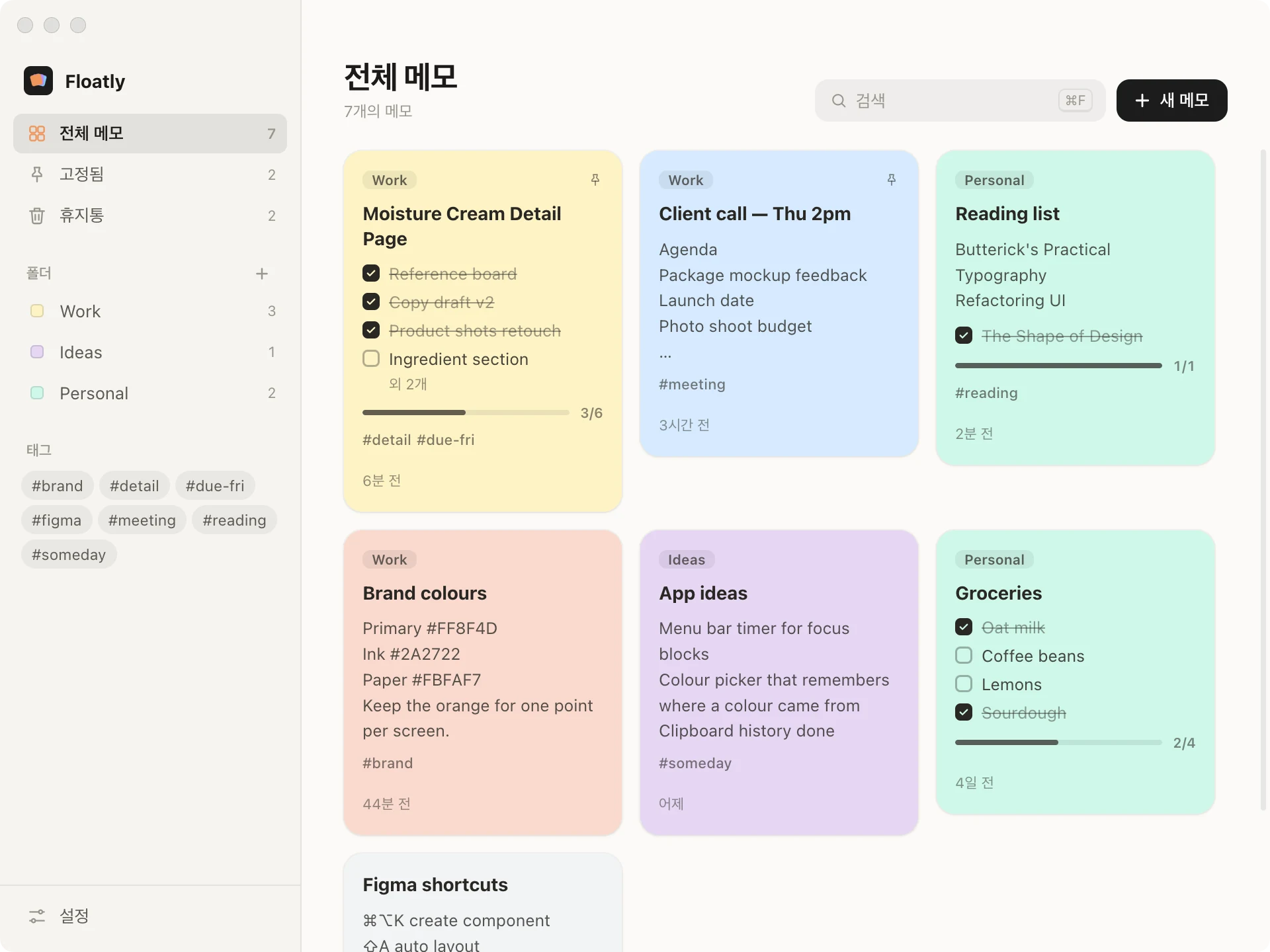
화면에 띄우지 않은 메모까지 카드로 모아 봅니다. 카드를 누르면 그 메모가 화면에 뜹니다. 카드에는 폴더, 체크리스트 진행률, 태그, 수정한 시간이 함께 보입니다(⌘0).Notes that aren't on screen are gathered here as cards; click one to float it again. Each card shows its folder, checklist progress, tags and when it was edited (⌘0).

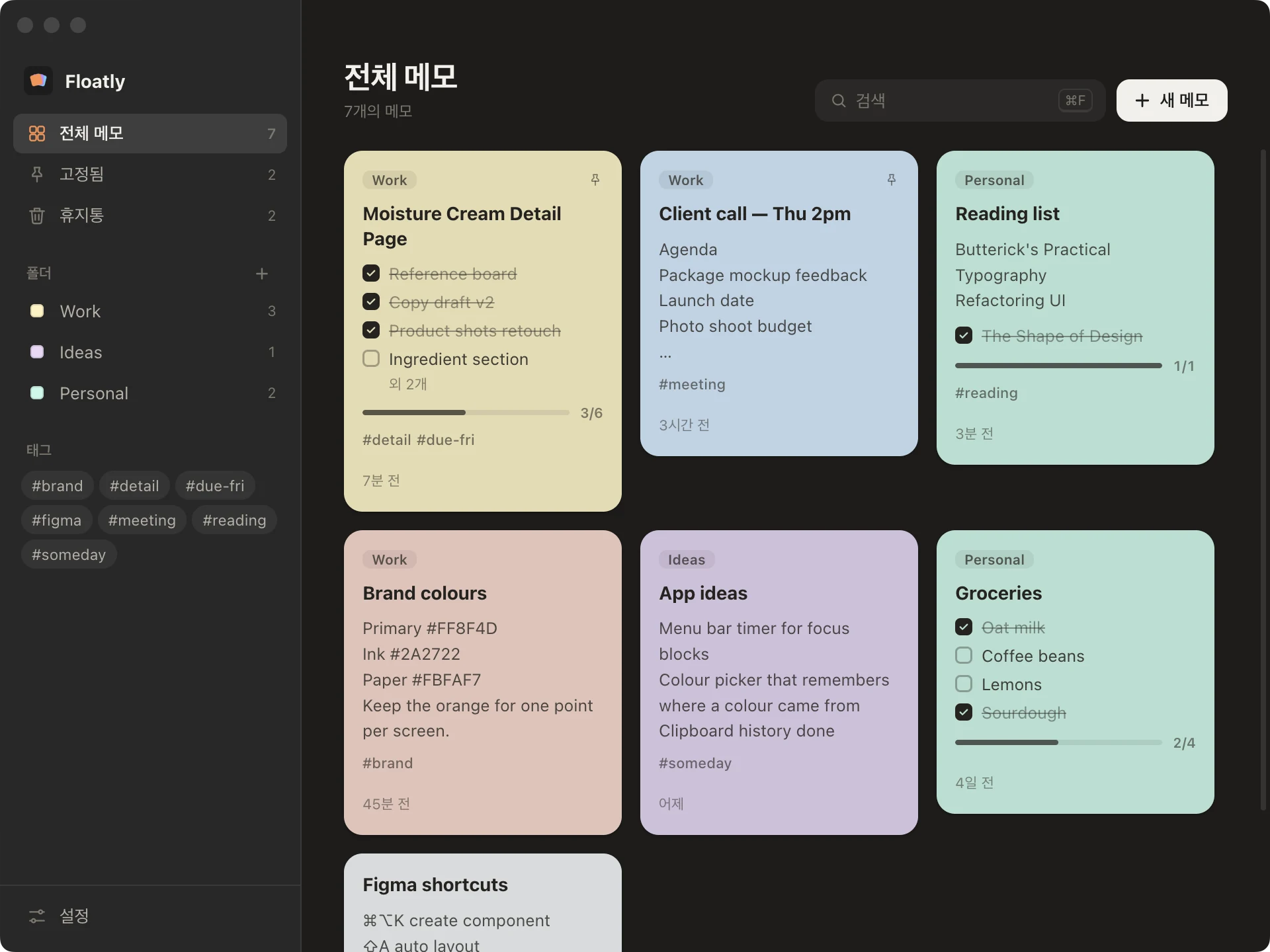
Dashboard, light: sidebar with folders and tags, seven note cards in a grid Dashboard, dark: sidebar with folders and tags, seven note cards in a grid
끌어서 폴더로Drag into folders카드를 사이드바 폴더에 끌어 놓으면 옮겨집니다. 폴더를 지우면 안의 메모는 휴지통으로 갑니다.Drop a card on a folder in the sidebar to move it. Deleting a folder sends its notes to the trash.
고정한 메모가 먼저Pinned first고정한 메모는 목록 맨 앞에 오고, 나머지는 최근에 고친 순서로 놓입니다.Pinned notes lead the list; the rest follow by last edit.
체크리스트 진행률Checklist progress할 일이 있는 메모는 네 줄까지 보여주고, 몇 개를 끝냈는지 막대로 보여줍니다.Notes with tasks show up to four of them and a bar of how many are done.
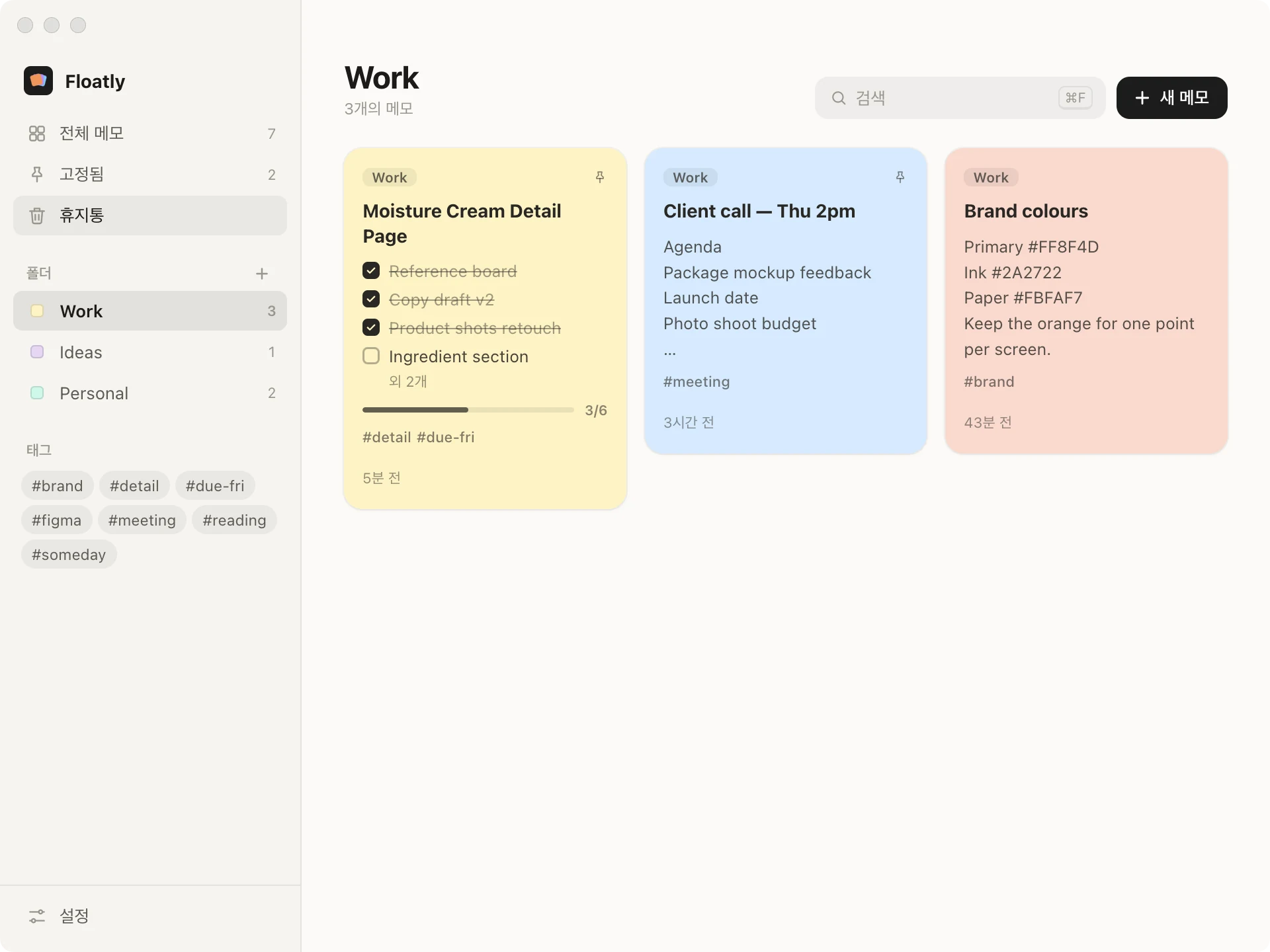
Work folder selected: three notes
폴더 — WorkFolder — Work
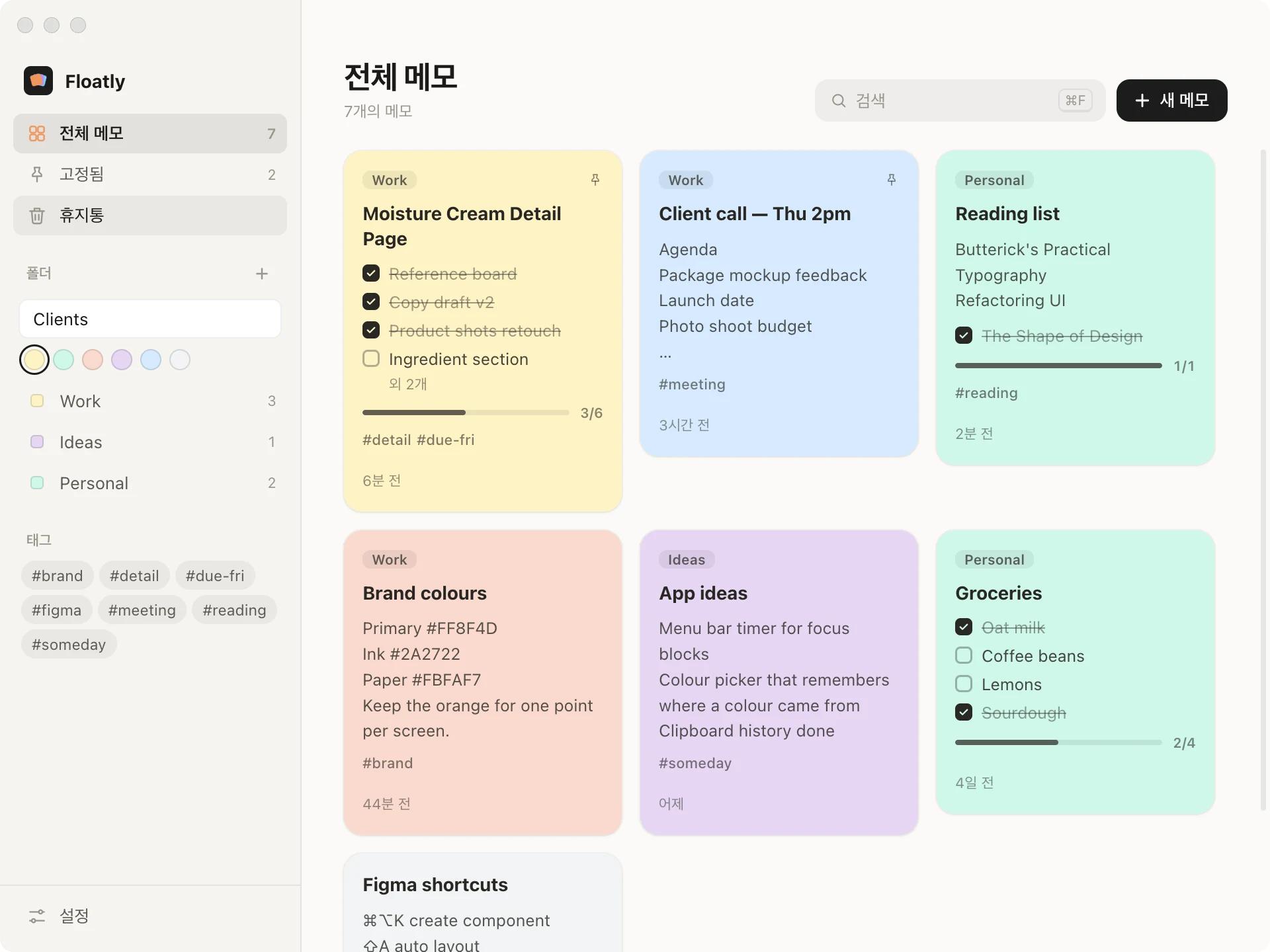
New folder field open in the sidebar with six colour choices
새 폴더 — 이름과 색New folder — name and colour
04 — Find

검색과 태그Search and tags

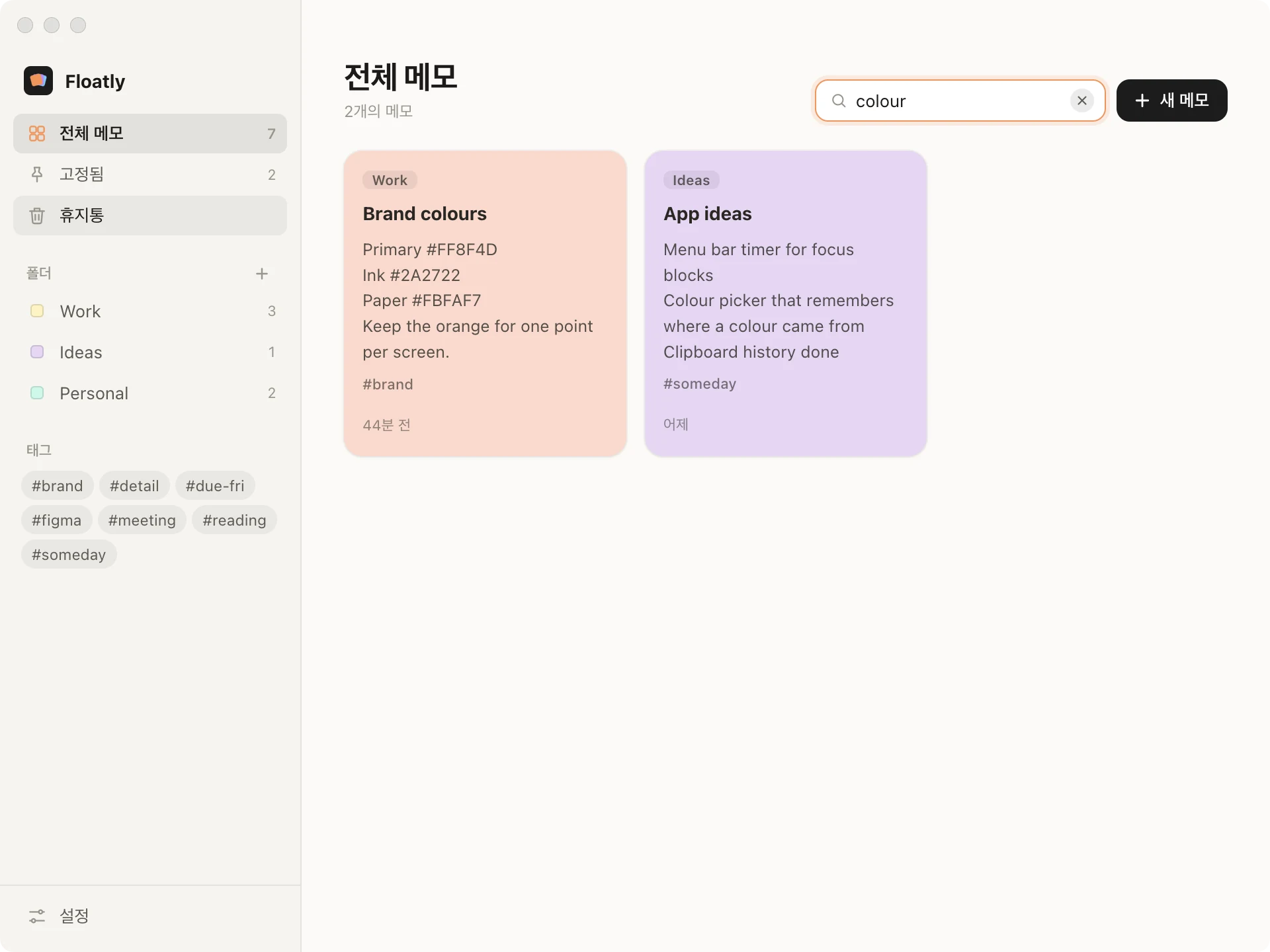
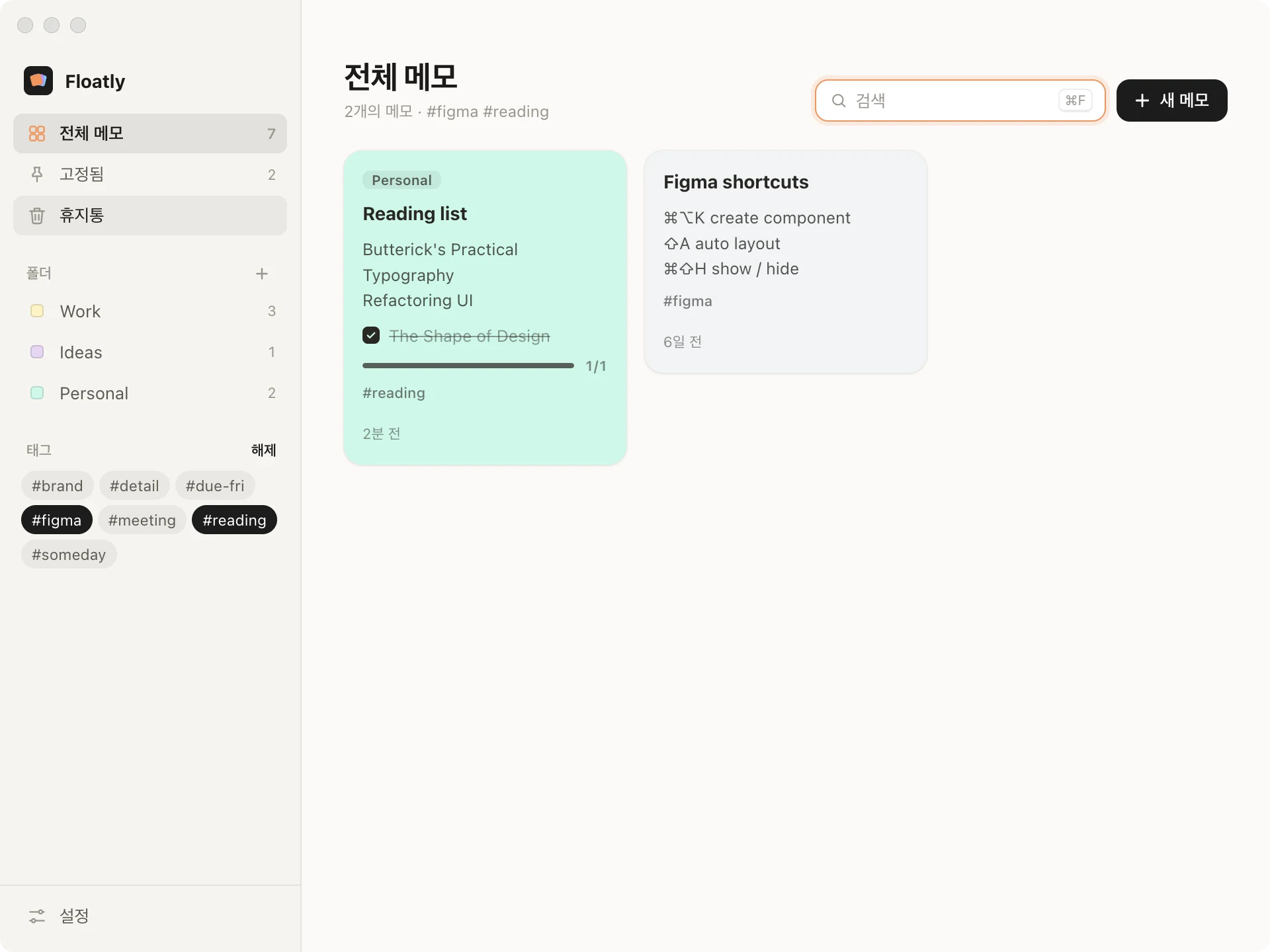
제목, 본문, 태그를 한 번에 찾습니다(⌘F). 사이드바에서 태그를 여러 개 고르면 그중 하나라도 붙은 메모를 보여줍니다.One search covers titles, text and tags (⌘F). Pick several tags in the sidebar to see notes carrying any of them.

Search for colour: two matching notes
검색 — “colour”Search — “colour”
Tags figma and reading selected: two notes
태그 — #figma · #readingTags — #figma · #reading
05 — Backup

지워도, 꺼져도Nothing quietly lost

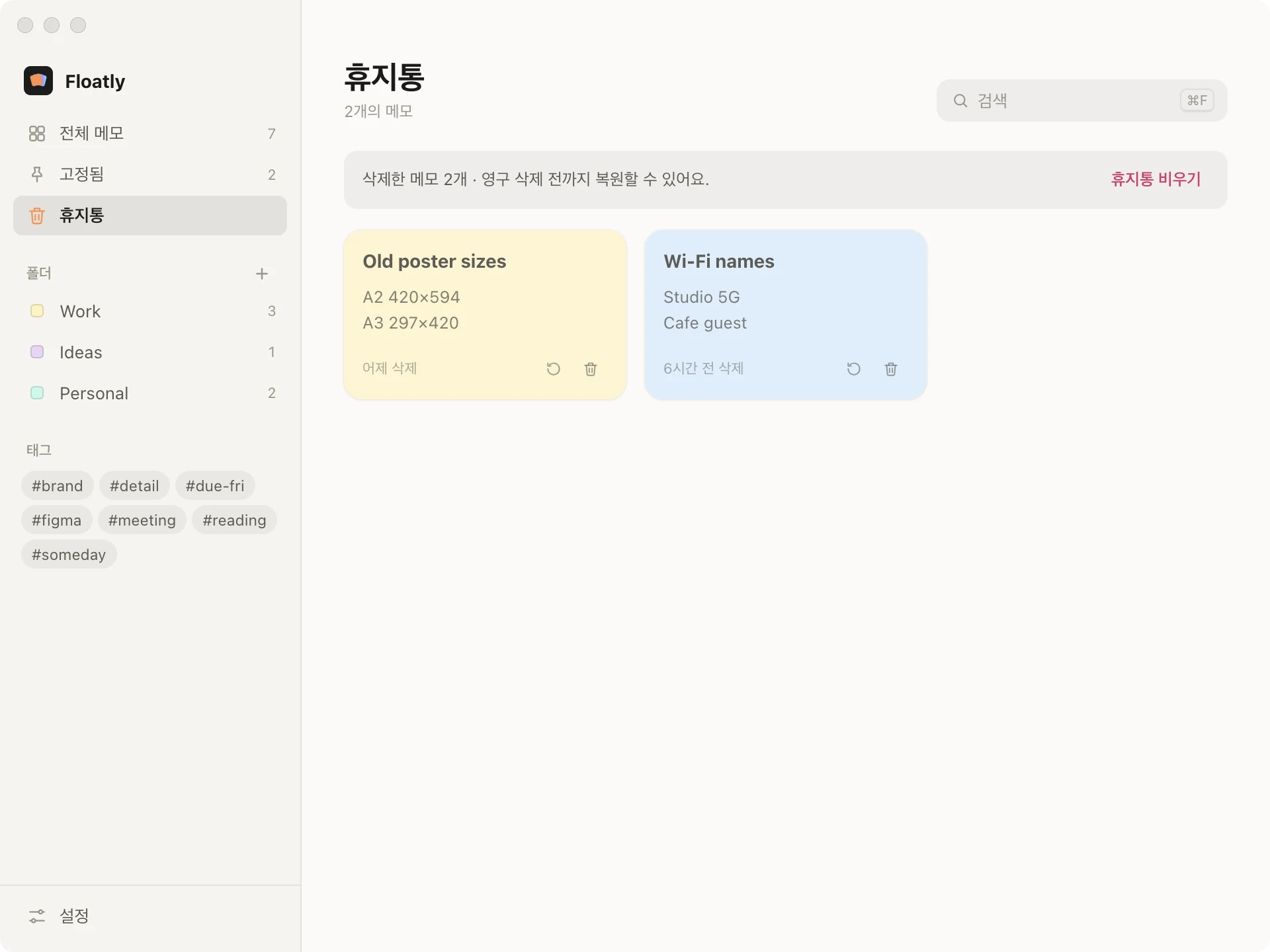
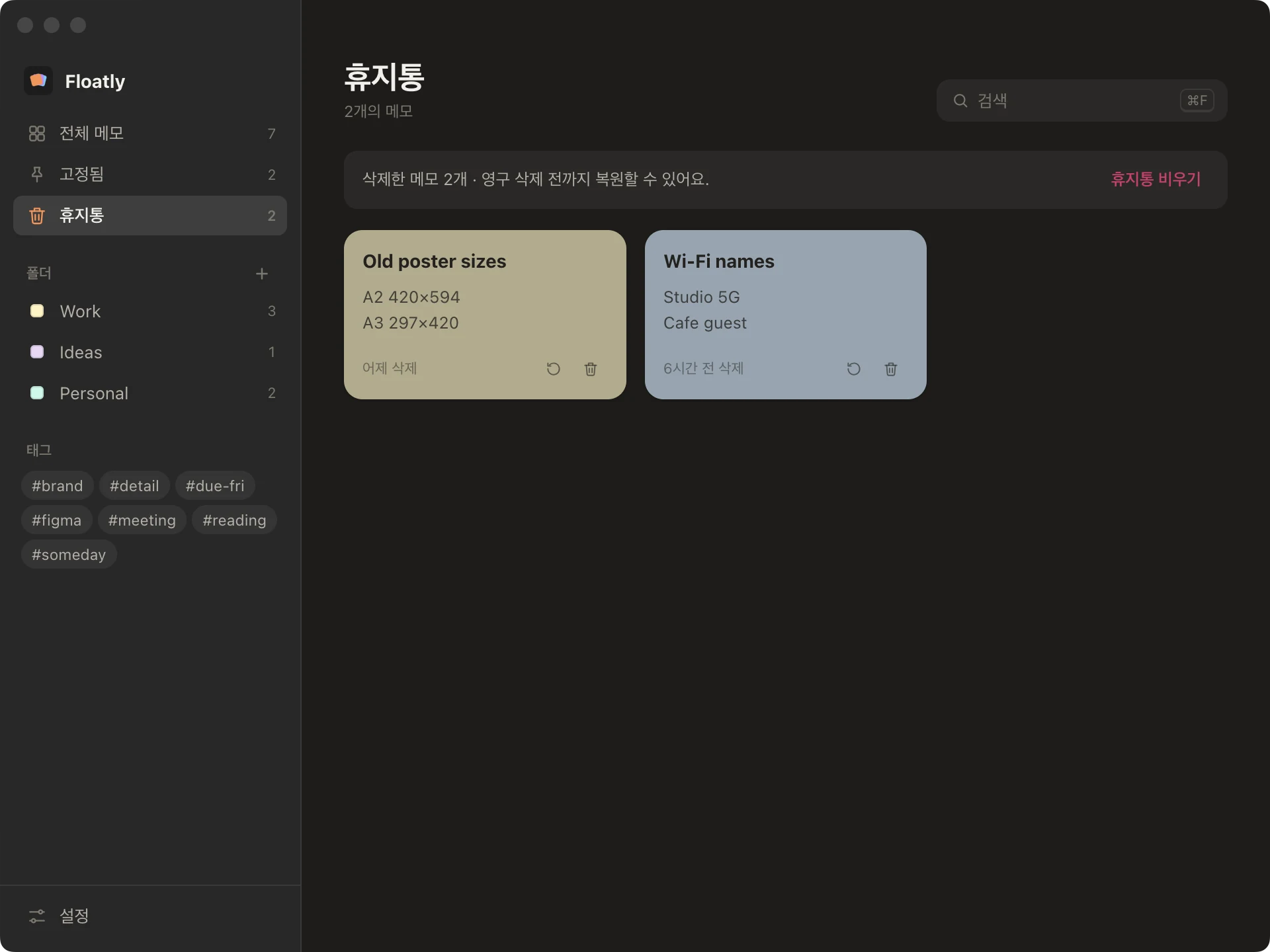
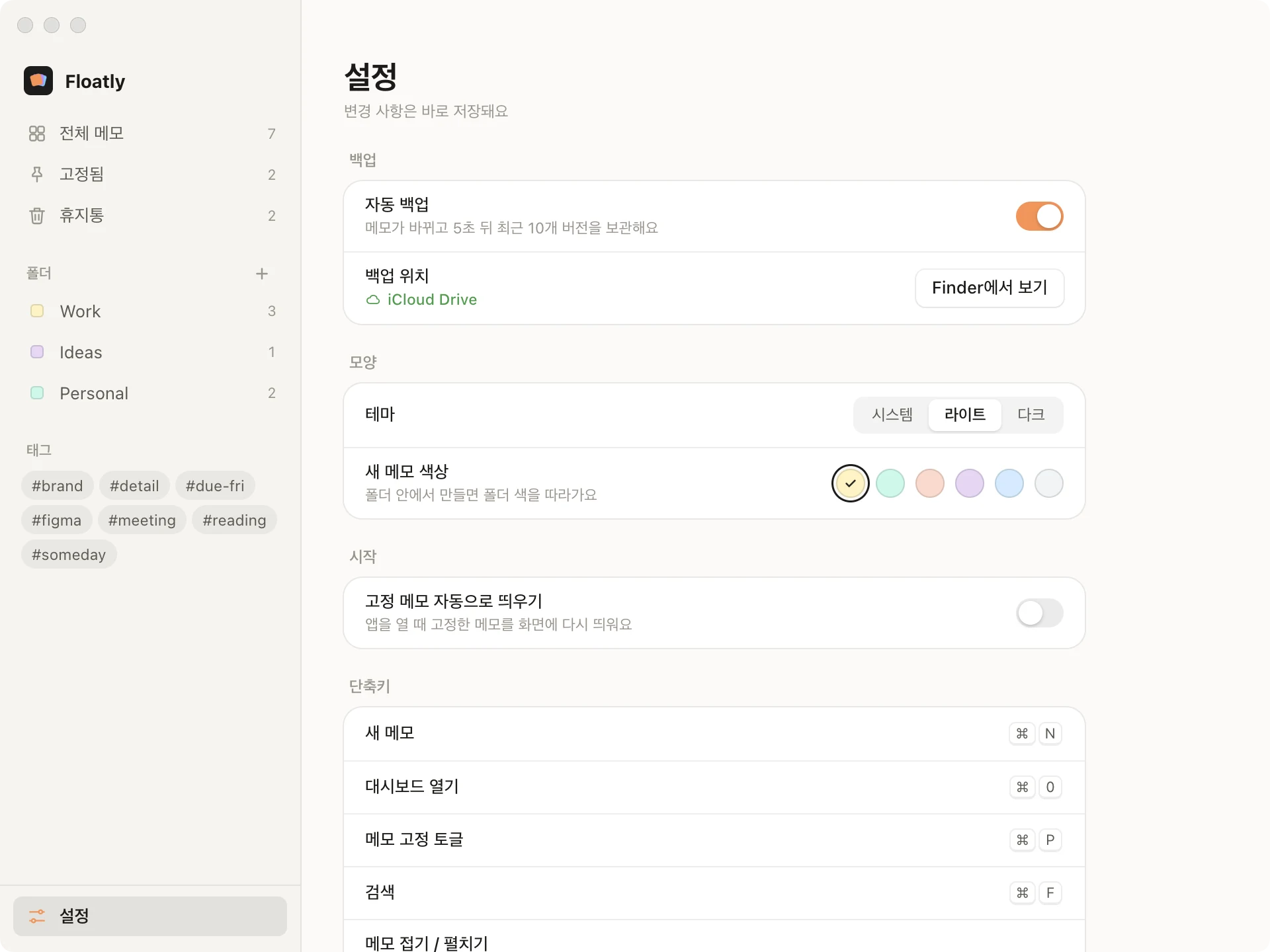
지운 메모는 휴지통에 남아 다시 꺼낼 수 있습니다. 메모가 바뀌면 5초 뒤 iCloud Drive에 백업하고 최근 10개 버전을 보관합니다. 앱을 다시 켜면 열려 있던 메모가 같은 자리, 같은 크기로 다시 뜹니다.Deleted notes wait in the trash until you restore or remove them. Five seconds after a change, the notes are backed up to iCloud Drive, keeping the last ten versions. Relaunch the app and the notes that were open come back in the same place and size.

Trash with two deleted notes, restore and delete buttons Trash with two deleted notes, restore and delete buttons
휴지통 — 복원 · 영구 삭제Trash — restore or delete
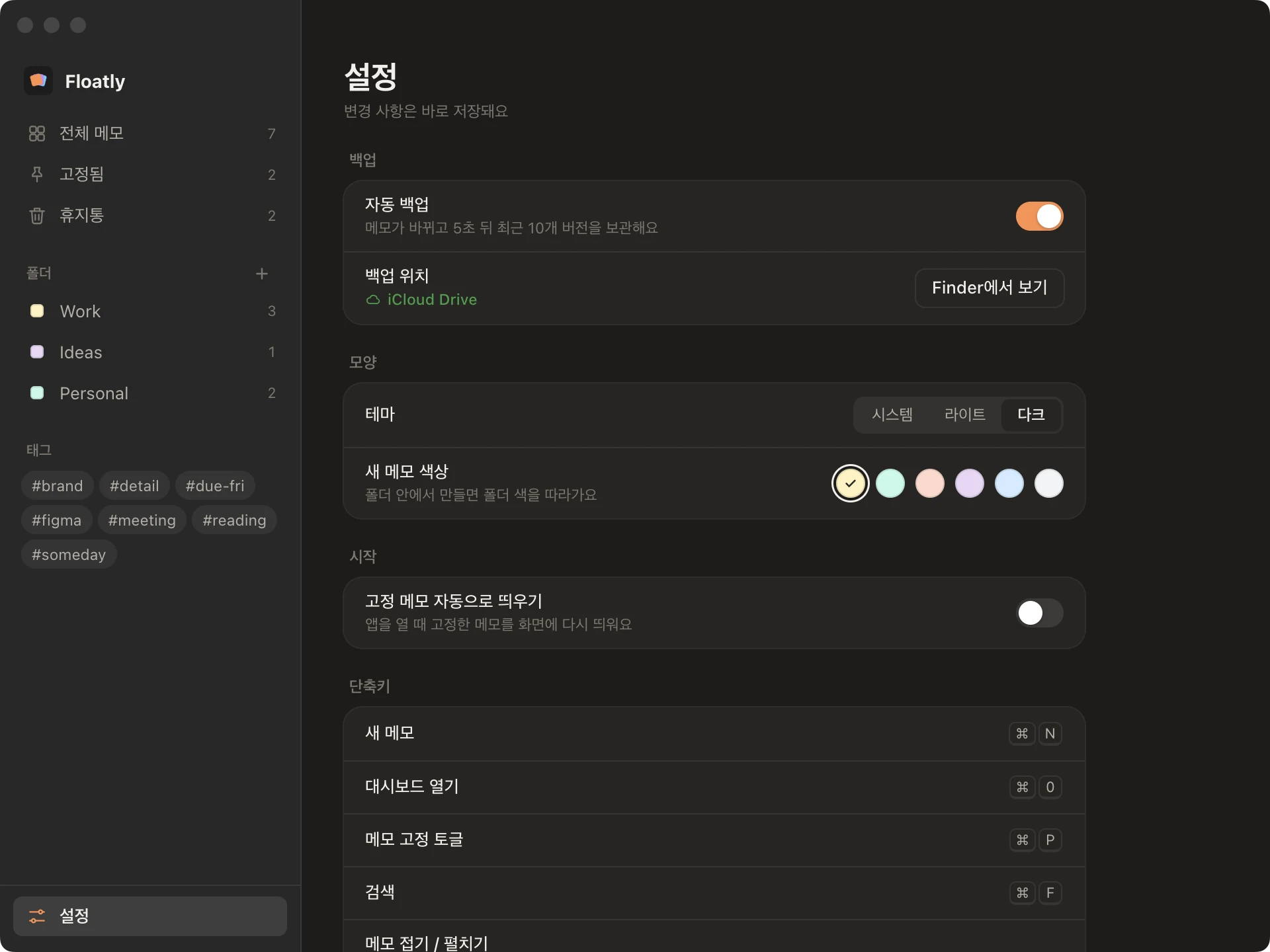
Settings: auto backup to iCloud Drive, theme, default note colour, reopen pinned notes, shortcuts Settings: auto backup to iCloud Drive, theme, default note colour, reopen pinned notes, shortcuts
설정 — 백업 · 테마 · 기본 색 · 단축키Settings — backup, theme, default colour, shortcuts
06 — Plate · Colour

메모 색Note colours

메모는 연한 종이색 여섯 가지로 두고, 앱 화면의 포인트는 주황 하나만 썼습니다. 글자는 검정 대신 따뜻한 잉크색입니다.Notes come in six pale paper colours; the app itself uses a single orange point. Text is a warm ink rather than black.

Yellow#FFF3BF
Mint#C3FAE8
Peach#FFD8CC
Lavender#E8D5F5
Sky#D0EBFF
Grey#F1F3F5
Orange#FF8F4D
Ink#2A2722
07 — Plate · App icon · 1024 px

앱 아이콘App icon

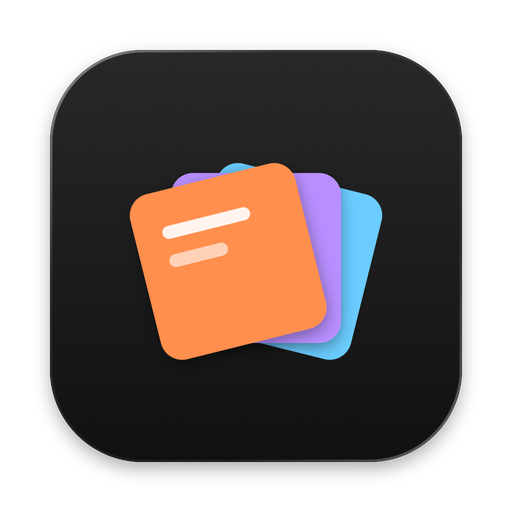
App icon: three notes fanned out on a dark square, the orange one in front
겹쳐 놓인 메모 세 장Three notes, fanned화면 여기저기 떠 있는 메모를 한 점을 축으로 펼친 세 장으로 표현했습니다.Notes floating around the screen, drawn as three sheets fanned from one point.
글줄은 맨 앞 한 장에만Lines on the front sheet only맨 앞 주황 메모에만 글줄 두 개를 넣어 메모 앱이라는 걸 알 수 있게 했습니다.Two lines on the orange sheet in front are enough to read it as a notes app.

봐야 할 메모를 작업 화면 위에
계속 띄워두려고 만든 앱입니다.
Built to keep the notes I need
floating above my work.

기획 · 디자인 · 개발 — RIDA HAPlanning · Design · Development — RIDA HA ← Works