ADOPE / Works

Folida

작업 중인 폴더를 편하게 정리하고 싶어서 만든 맥용 파일관리자입니다. 두 폴더를 나란히 열어 둔 채로 시안을 비교하고, 쌓인 버전 파일을 정리하고, 최종 파일을 전달하기 전에 이름을 한 번에 바꾸거나 빠진 파일이 없는지 확인할 수 있습니다. MCP를 연결하면 AI에게 폴더 정리를 맡길 수도 있습니다. 기획부터 디자인, SwiftUI · AppKit 개발까지 진행했습니다.A Mac file manager made for tidying design project folders. Two folders open side by side, so you can compare drafts, clear out piled-up versions and check files before delivery. You can also hand folder cleanup to an AI and approve the result. I handled planning, design and SwiftUI / AppKit development.

macOS · 2026
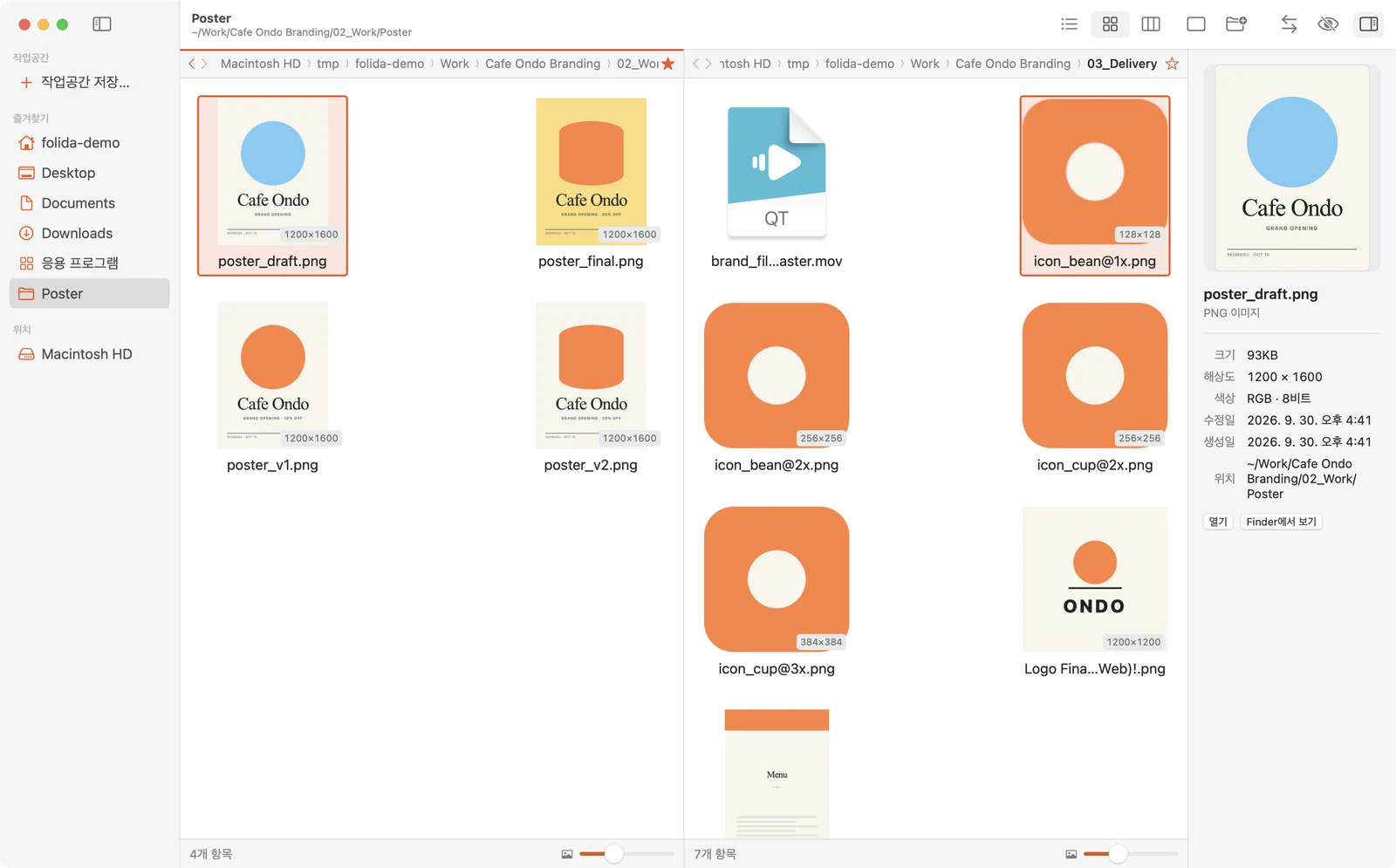
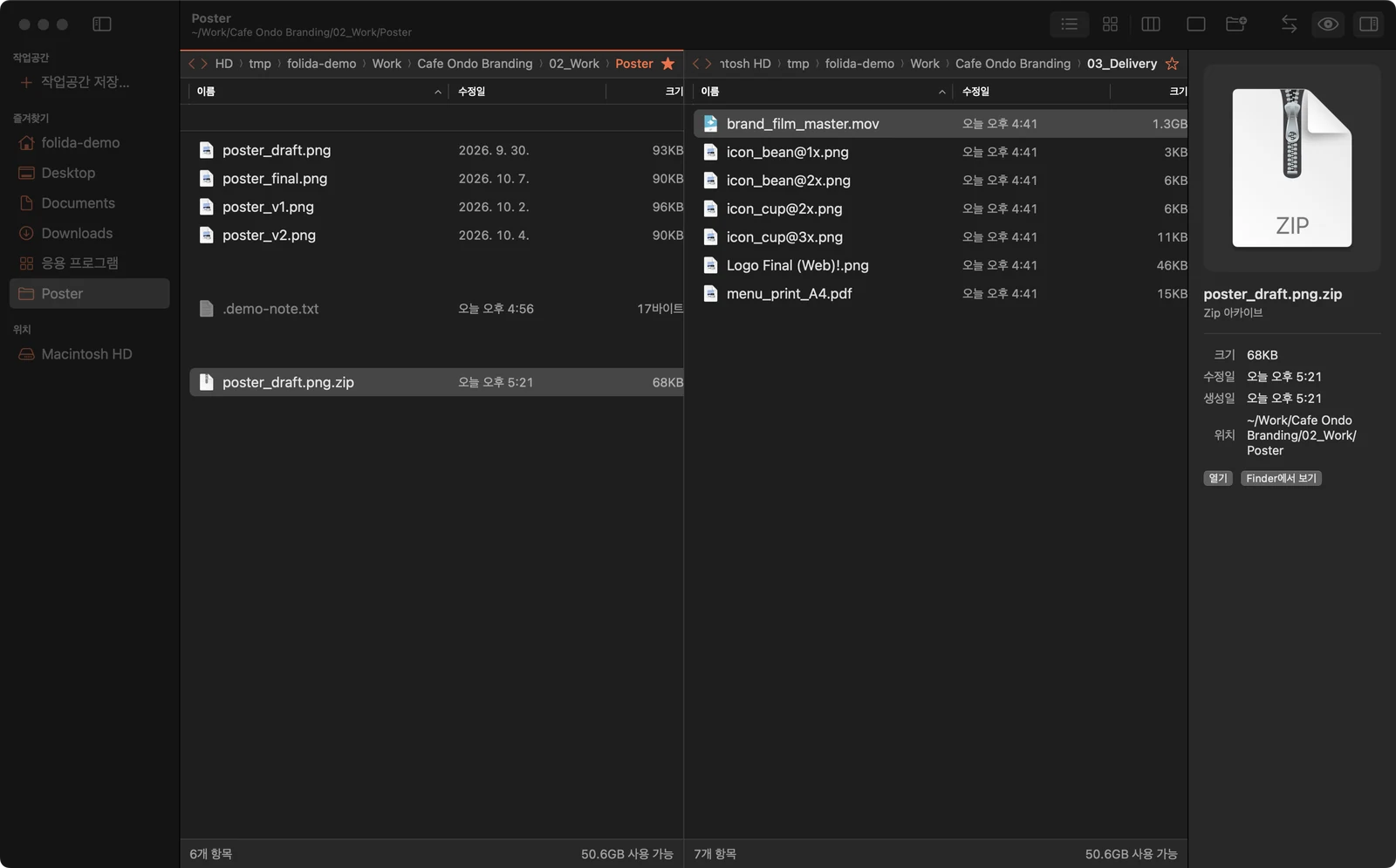
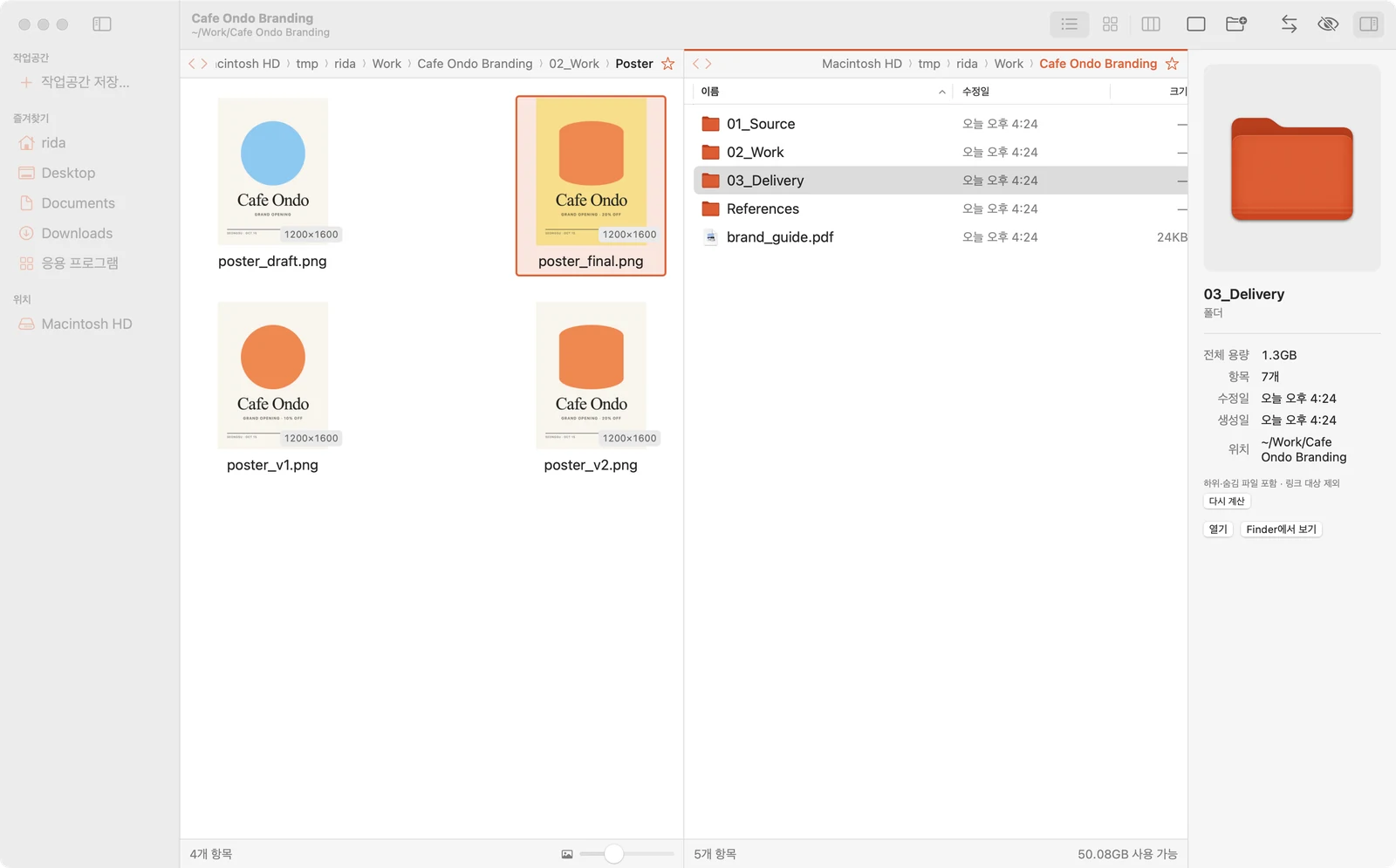
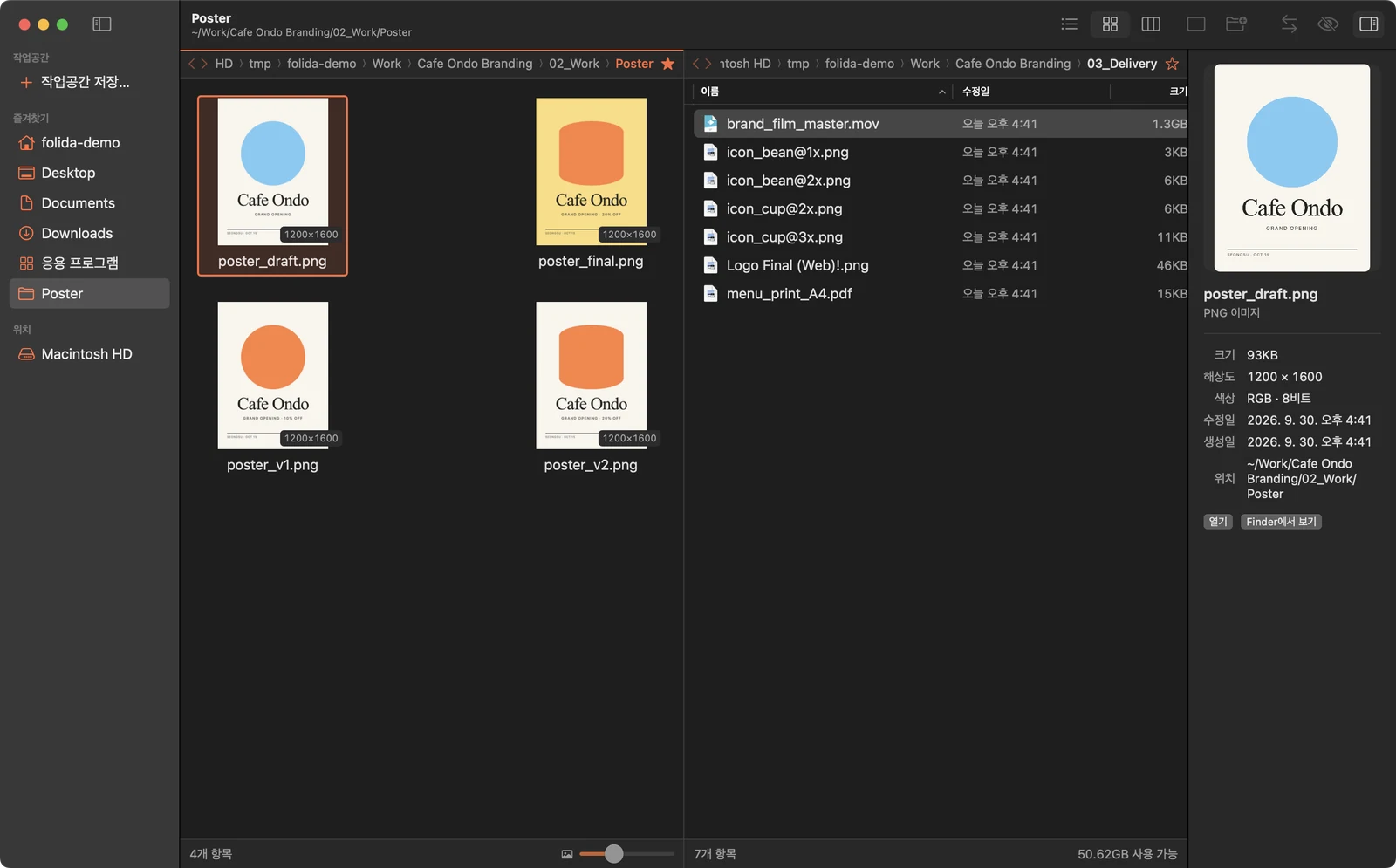
Folida main window: sidebar, two panes (poster thumbnails and a delivery folder), inspector on the right
화면 둘러보기A tour of the window
01
00 — Overview

자주 반복되던 일When it helps

파일을 정리하며 매번 반복되던 일을 한 창 안에서 끝낼 수 있도록 기능을 골랐습니다. 디자이너뿐 아니라 파일 정리가 필요한 누구나 쓸 수 있습니다.Finder shows one folder per window, so moving and comparing means juggling windows. The features cover the chores that repeat in every design job.

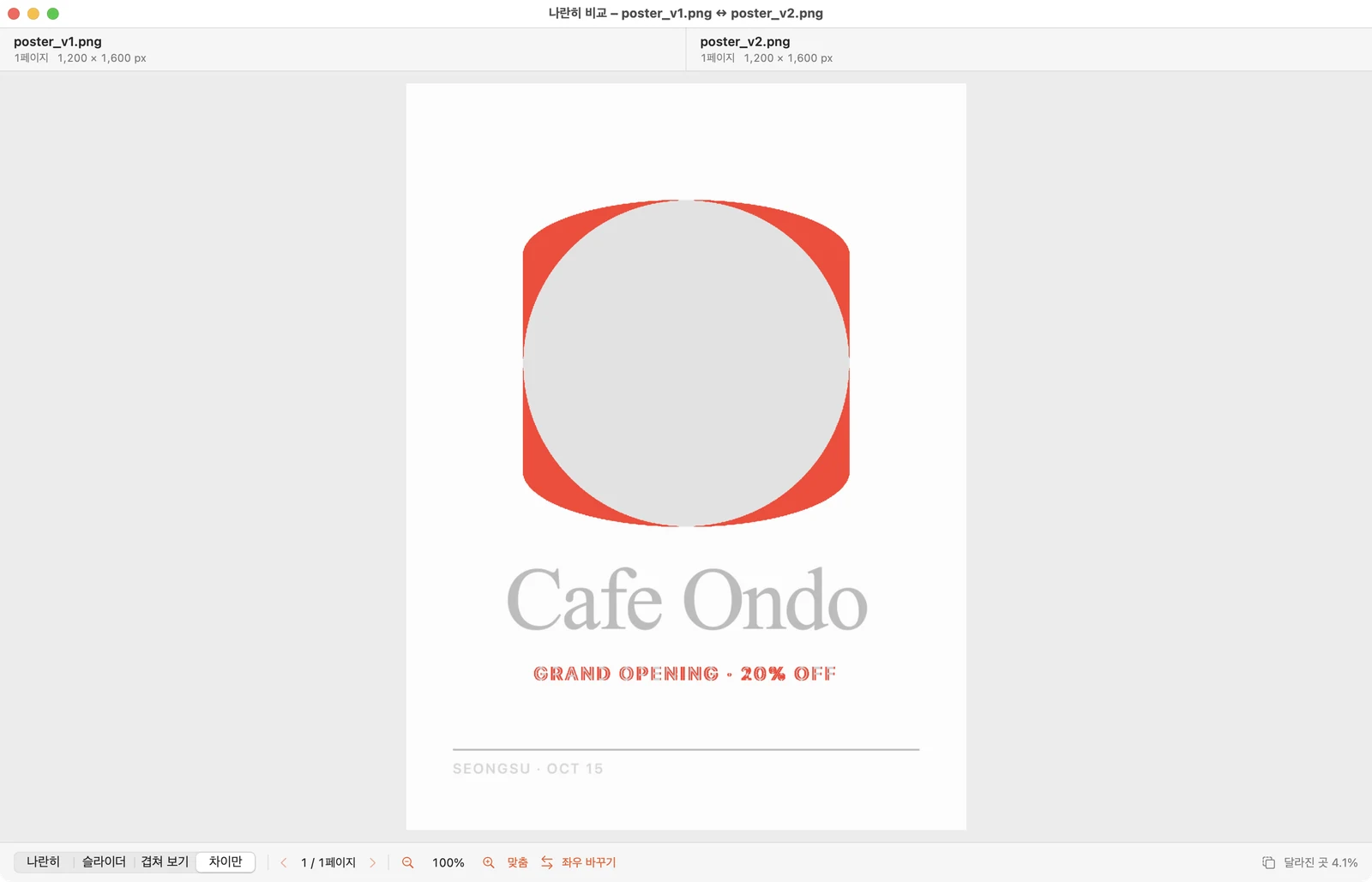
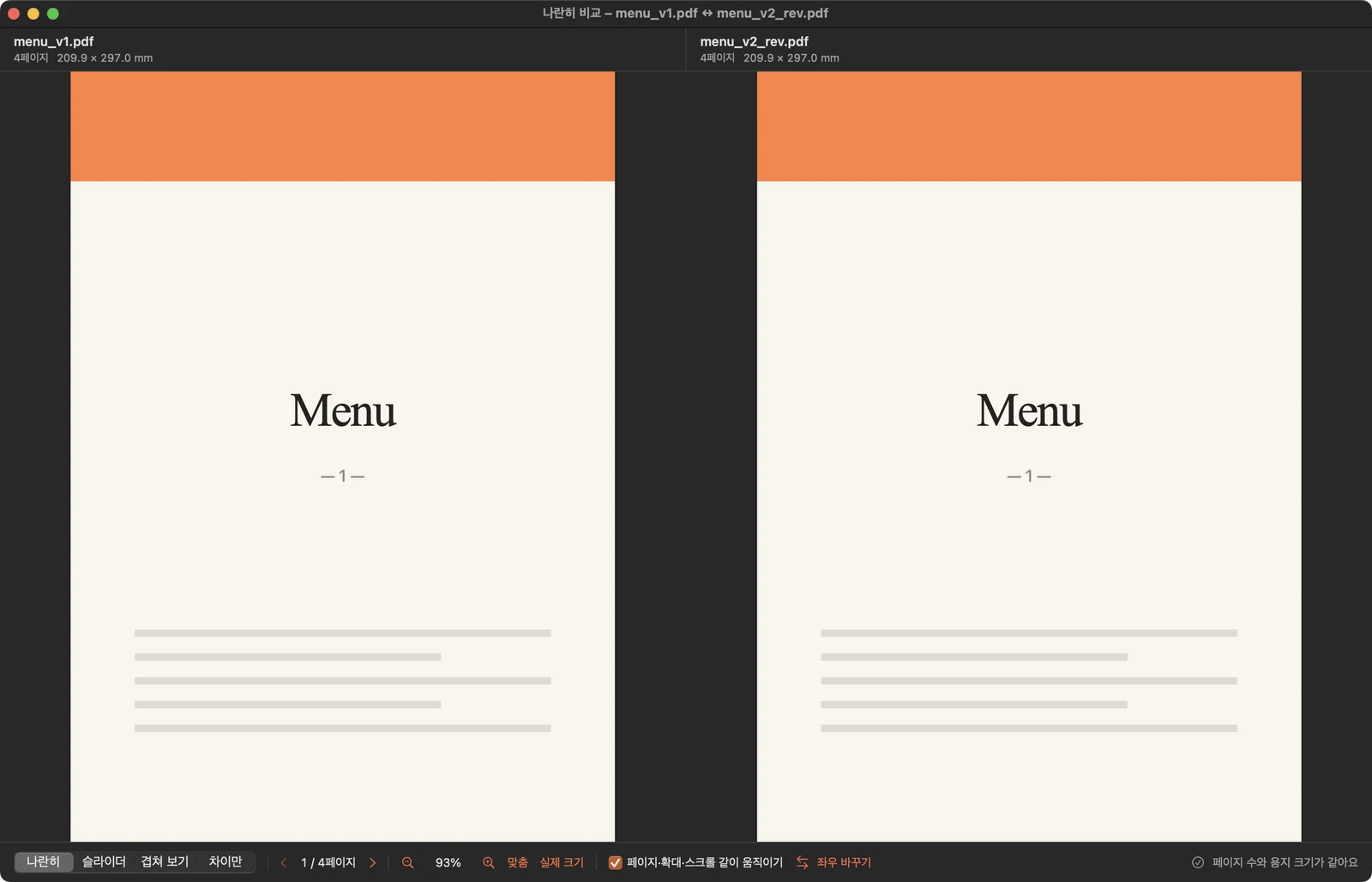
“v1이랑 v2 뭐가 달라졌지?”“What changed between v1 and v2?”수정을 여러 번 거친 시안들을 한 창에 나란히 놓거나, 경계선으로 반씩 나누거나, 겹쳐서 볼 수 있습니다. 한쪽을 확대하면 다른 쪽도 같은 부분이 함께 확대됩니다. 달라진 픽셀만 빨갛게 표시할 수도 있고, PDF는 페이지를 함께 넘기며 비교할 수 있습니다.See two drafts side by side, split by a slider, overlaid, or with only the changed pixels in red. PDFs turn pages together.
“로고_최종_진짜_v3.ai”“logo_final_real_v3.ai”꼬리말만 다른 같은 파일을 묶어 최신 파일 하나만 남기고, 나머지는 지우지 않고 _이전버전 폴더로 옮겨 둘 수 있습니다.Files that differ only by suffix are grouped; the newest stays and the rest move, never deleted, into an _이전버전 (old versions) folder.
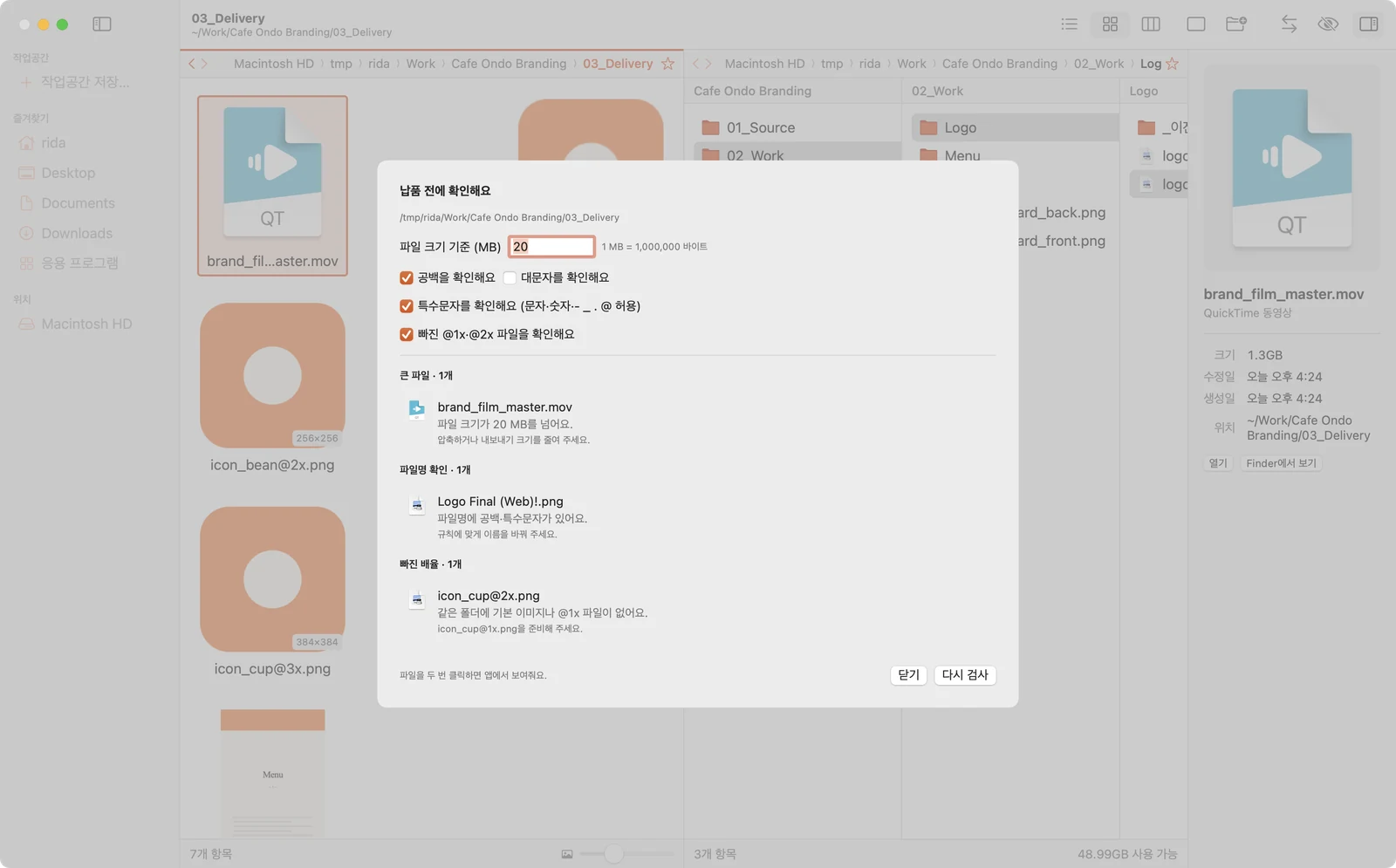
“보내기 전에 빠진 거 없나?”“Anything missing before I send?”너무 큰 파일, 공백이나 특수문자가 들어간 파일명, 빠진 @1x · @2x 파일을 찾아 보여주고, 보낸 파일은 날짜·버전별 폴더에 따로 보관할 수 있습니다.Flags oversized files, names with spaces or symbols and missing @1x / @2x, then keeps a dated, versioned copy of the delivery.
01 — Views

보기 방식Ways to look

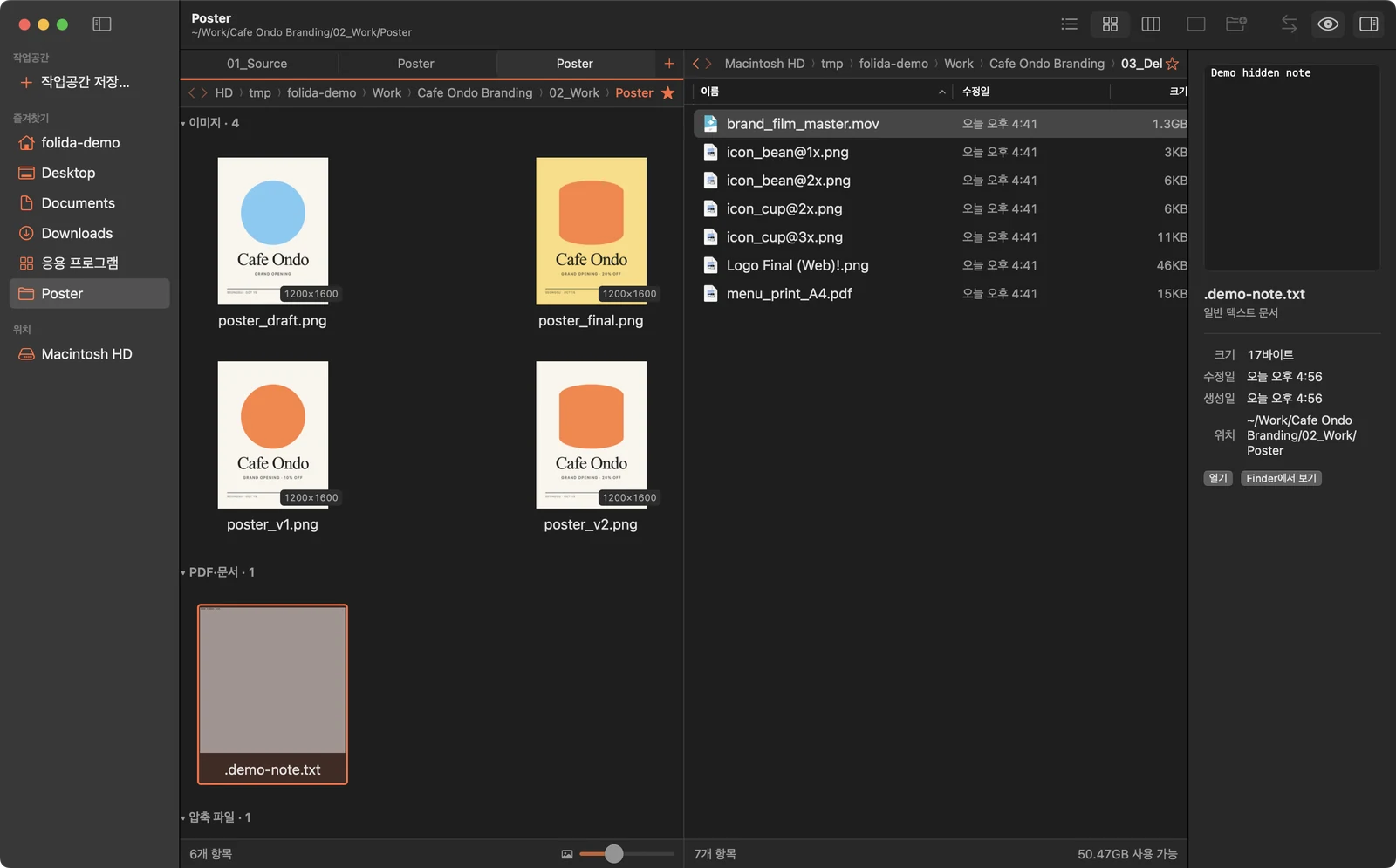
왼쪽과 오른쪽 패널이 각자 보기 방식을 기억하도록 했습니다. 사진 폴더는 큰 썸네일로, 납품 폴더는 목록으로 열어 둘 수 있고, 글자와 줄 크기도 큰 모니터에 맞게 세 단계로 조절할 수 있습니다.Each pane remembers its own view: photos as large thumbnails, the delivery folder as a list. Text and row size come in three steps for large monitors.

Left pane with three tabs and a thumbnail grid grouped by kind

큰 썸네일 보기 ⌘2Large thumbnails ⌘2

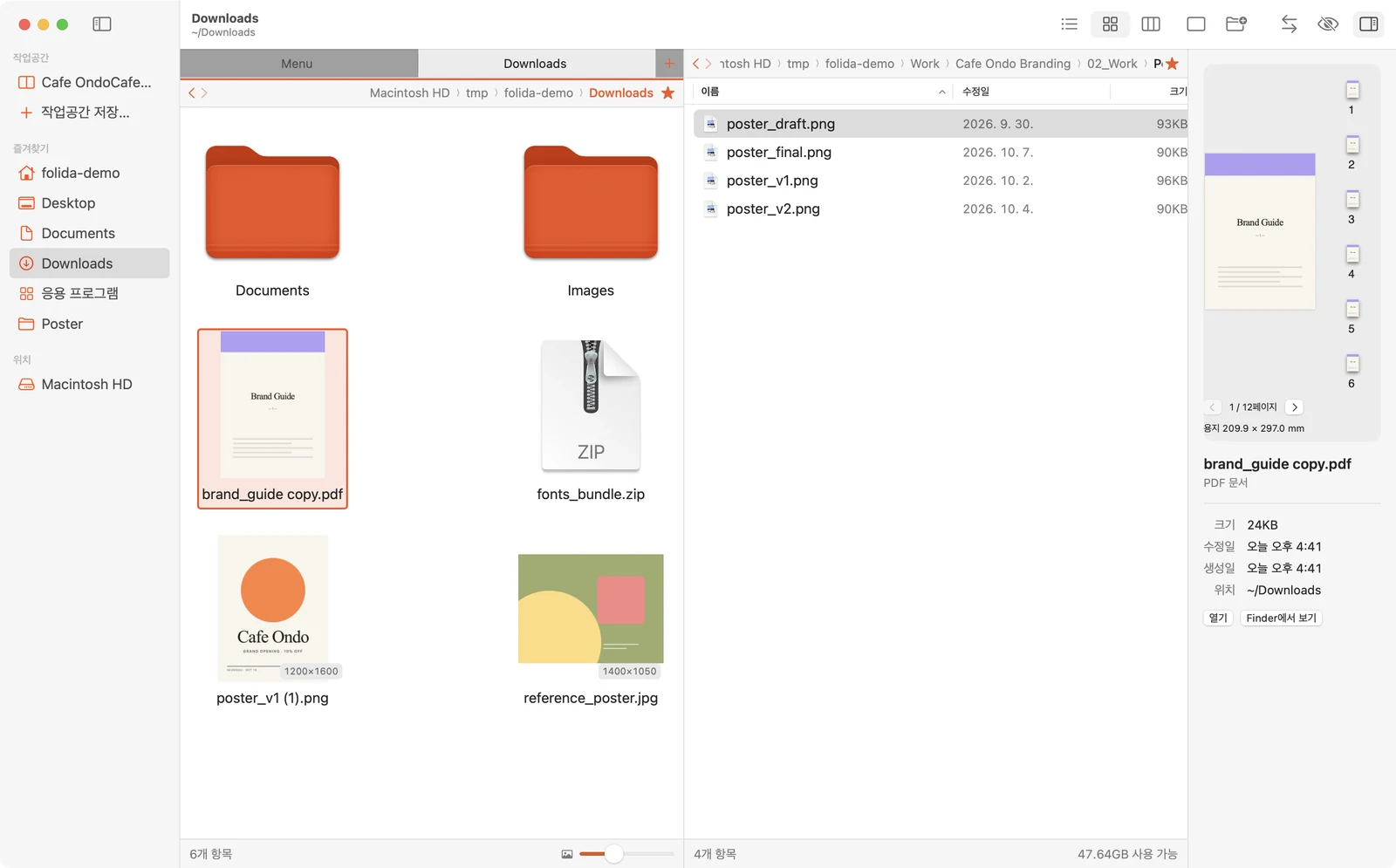
PSD · AI · PDF · HEIC · 영상까지 썸네일로 확인할 수 있습니다. 그림은 비율을 유지한 채 칸에 맞춰 보여주고, 아래에 해상도 배지(1200×1600 등)를 함께 표시합니다.PSD, AI, PDF, HEIC and video use macOS thumbnails. Images keep their ratio and carry a resolution badge (1200×1600 and so on).

  1. 상태 표시줄 슬라이더나 ⌘+ ⌘−로 썸네일을 80~320pt까지 조절할 수 있습니다.Resize thumbnails from 80 to 320pt with the status-bar slider, or ⌘+ ⌘−.
  2. ⌘T로 패널 안에 탭을 열어 자주 오가는 폴더를 나눠 둘 수 있고, ⇧⌘] ⇧⌘[로 탭을 넘길 수 있습니다.⌘T opens a tab inside the pane; switch with ⇧⌘] ⇧⌘[.
  3. 목록 보기는 ⌘1, 컬럼 보기는 ⌘3으로 바꿀 수 있습니다.List is ⌘1, columns ⌘3.

화면에 보이는 칸부터 썸네일을 만들고 지나간 칸은 건너뛰어, 파일이 많은 폴더에서도 느려지지 않도록 했습니다.Thumbnails are made for visible cells first and cancelled once scrolled past, so big folders stay quick.

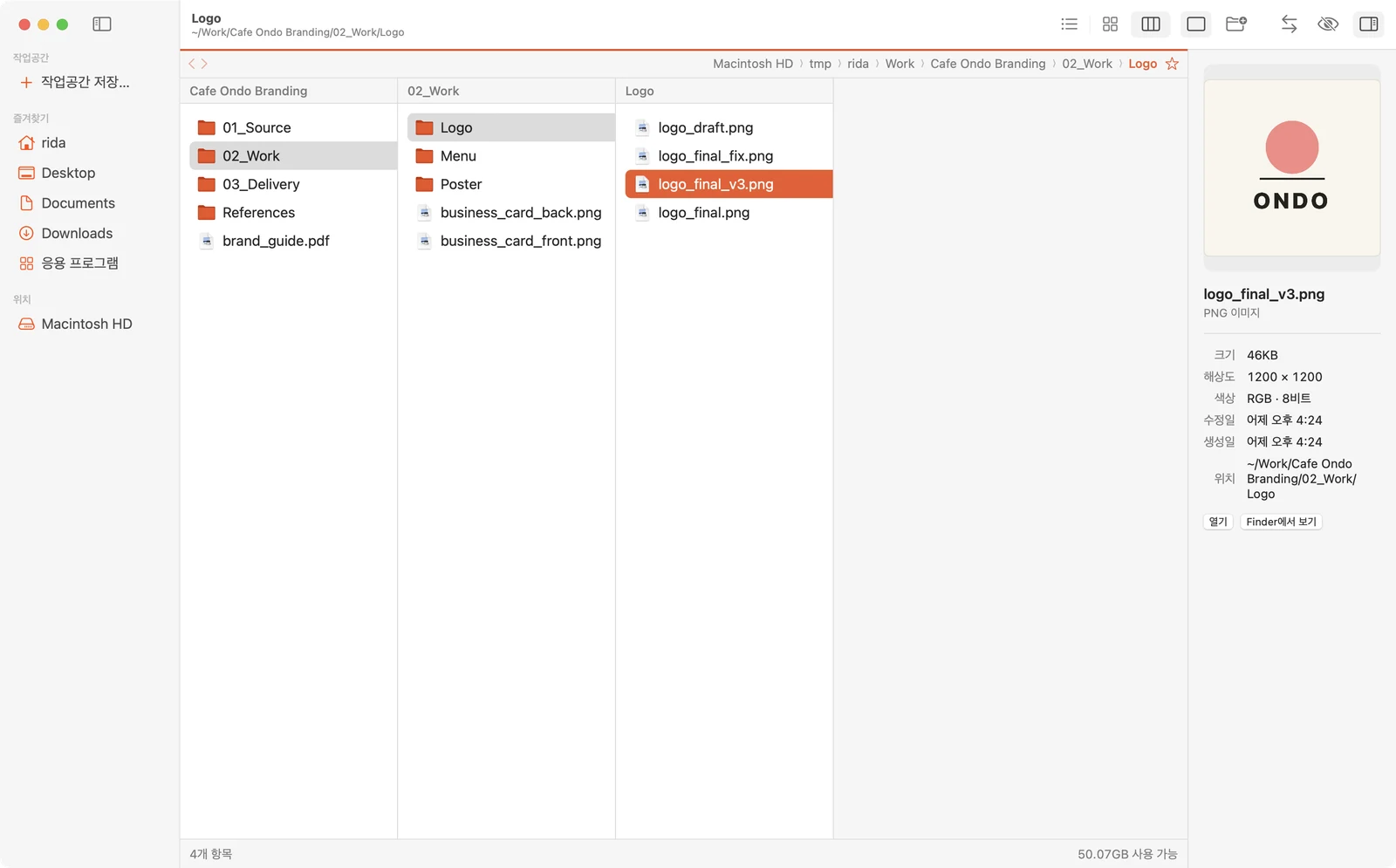
Column view: project, 02_Work and Logo columns, a logo previewed on the right

컬럼 보기 ⌘3Column view ⌘3

폴더를 한 번 누르면 오른쪽에 다음 열이 펼쳐져, 깊은 폴더로 내려가면서도 위쪽 단계를 계속 확인할 수 있습니다.Click a folder once and the next column opens to its right; upper levels stay in view as you go deeper.

  1. → ← 키로 열 사이를 이동할 수 있습니다.→ moves into a column, ← back out.
  2. 선택한 파일은 오른쪽 미리보기에서 바로 확인할 수 있습니다.The selected file appears in the inspector.
  3. 목록 보기로 돌아가도 보던 위치와 선택은 그대로 유지됩니다.Switching back to list keeps your place and selection.
One wide pane with name, date, size and kind columns

한 패널로 넓게 보기One wide pane

툴바 버튼으로 지금 패널을 화면 가득 넓혀 종류 열까지 함께 볼 수 있습니다. 한 번 더 누르면 두 패널로 돌아갑니다.A toolbar button gives the active pane the full width, with a kind column for scanning. Press again for two panes.

⌘U로 좌우 패널을 바꾸고, ⌘=로 반대 패널에 같은 폴더를 열 수 있습니다.⌘U swaps the panes; ⌘= opens the same folder on the other side.

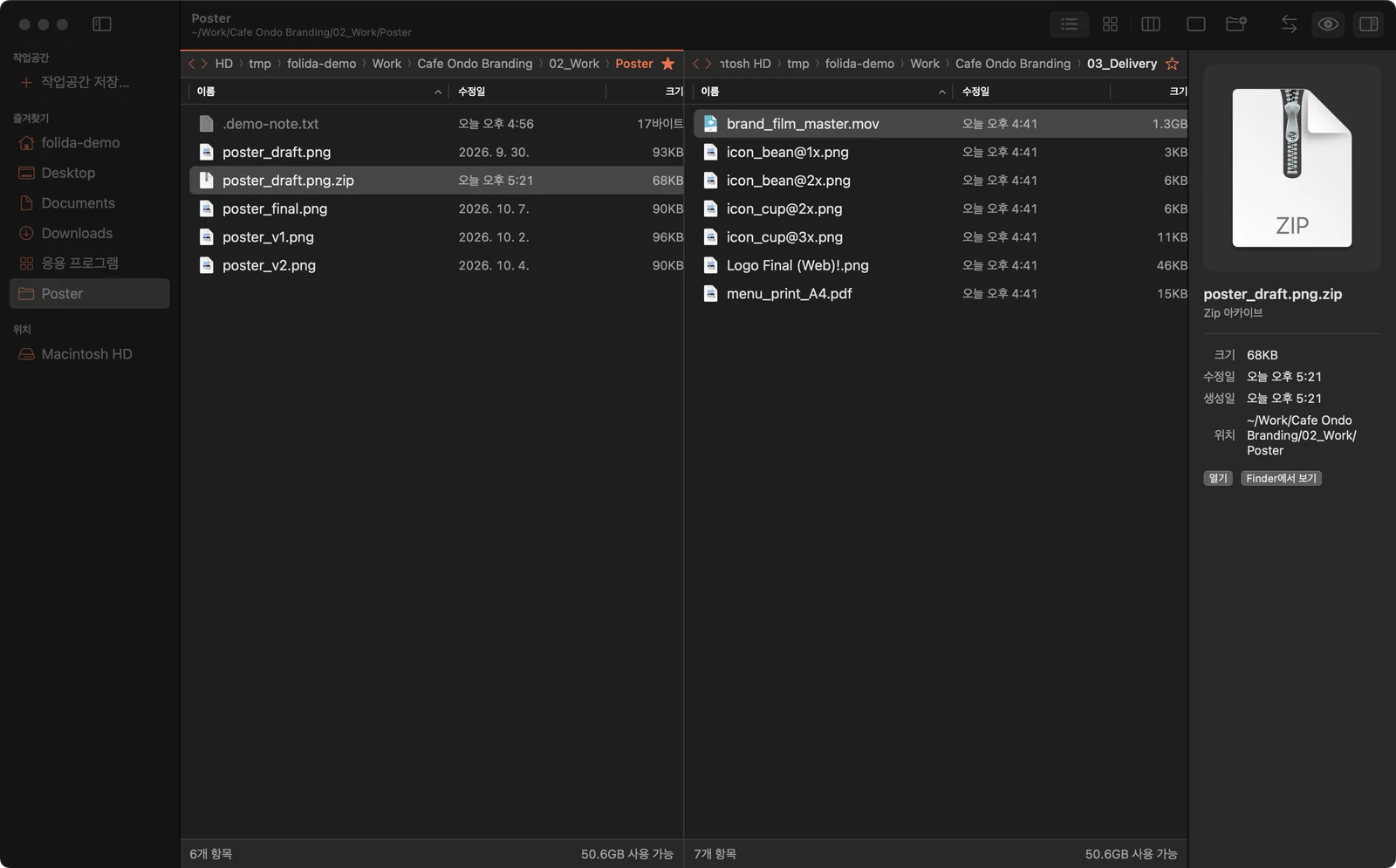
List grouped into images, a hidden note and a ZIP archive

종류별 묶어 보기Group by kind

보기 메뉴에서 켜면 이미지 · PDF · 압축 파일처럼 종류별로 나눠 볼 수 있어, 여러 파일이 섞인 폴더를 정리할 때 도움이 됩니다.From the View menu, files split into images, PDFs, archives and so on — handy for a mixed downloads folder.

Hidden .demo-note.txt shown dimmed in the list

숨김 파일 ⇧⌘.Hidden files ⇧⌘.

점으로 시작하는 숨김 파일을 흐리게 함께 표시할 수 있습니다. 툴바의 눈 아이콘으로도 켜고 끌 수 있습니다.Dot-files appear dimmed in the list; the eye button in the toolbar toggles them too.

02 — Inspector

파일 정보 미리보기Check without opening

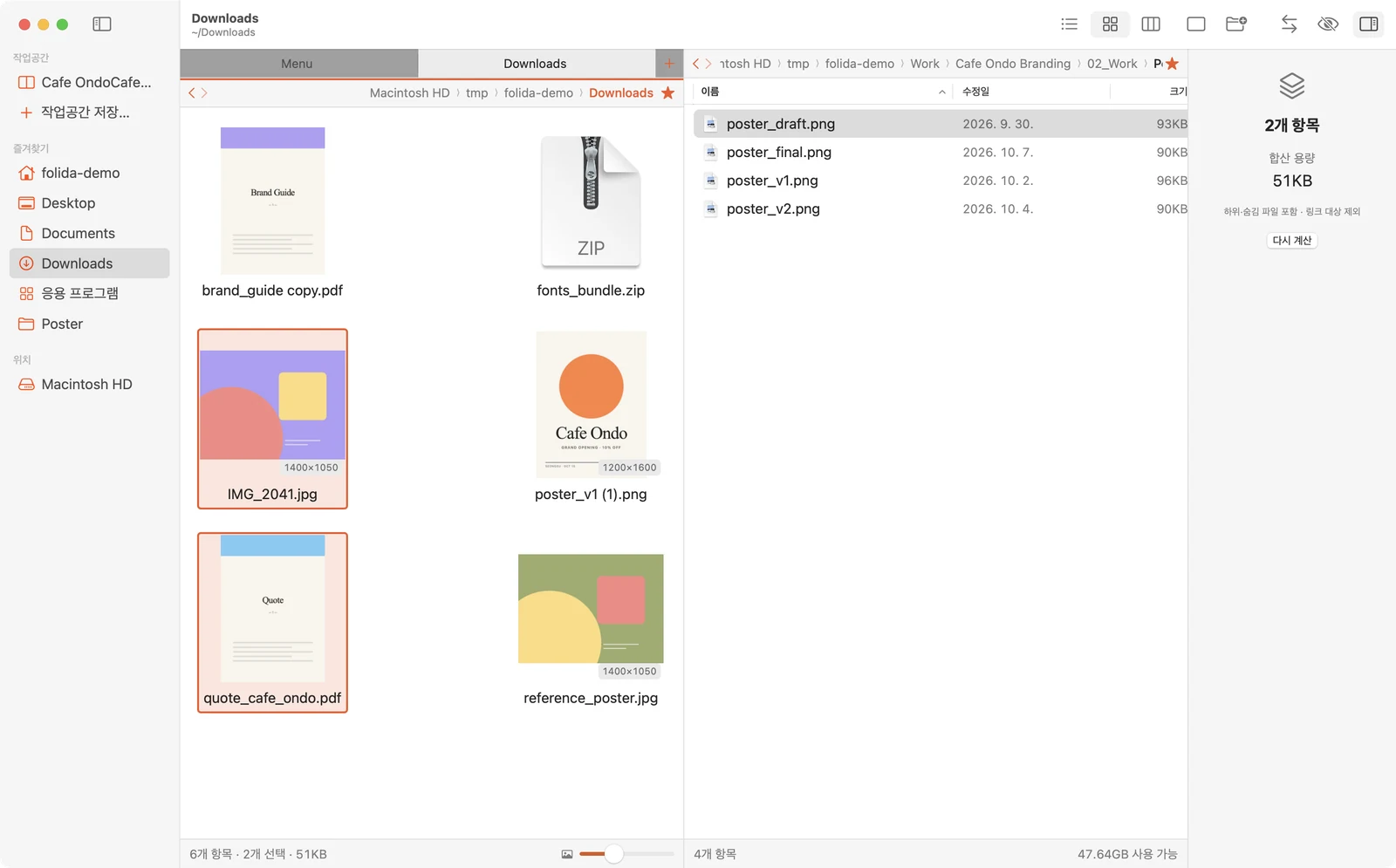
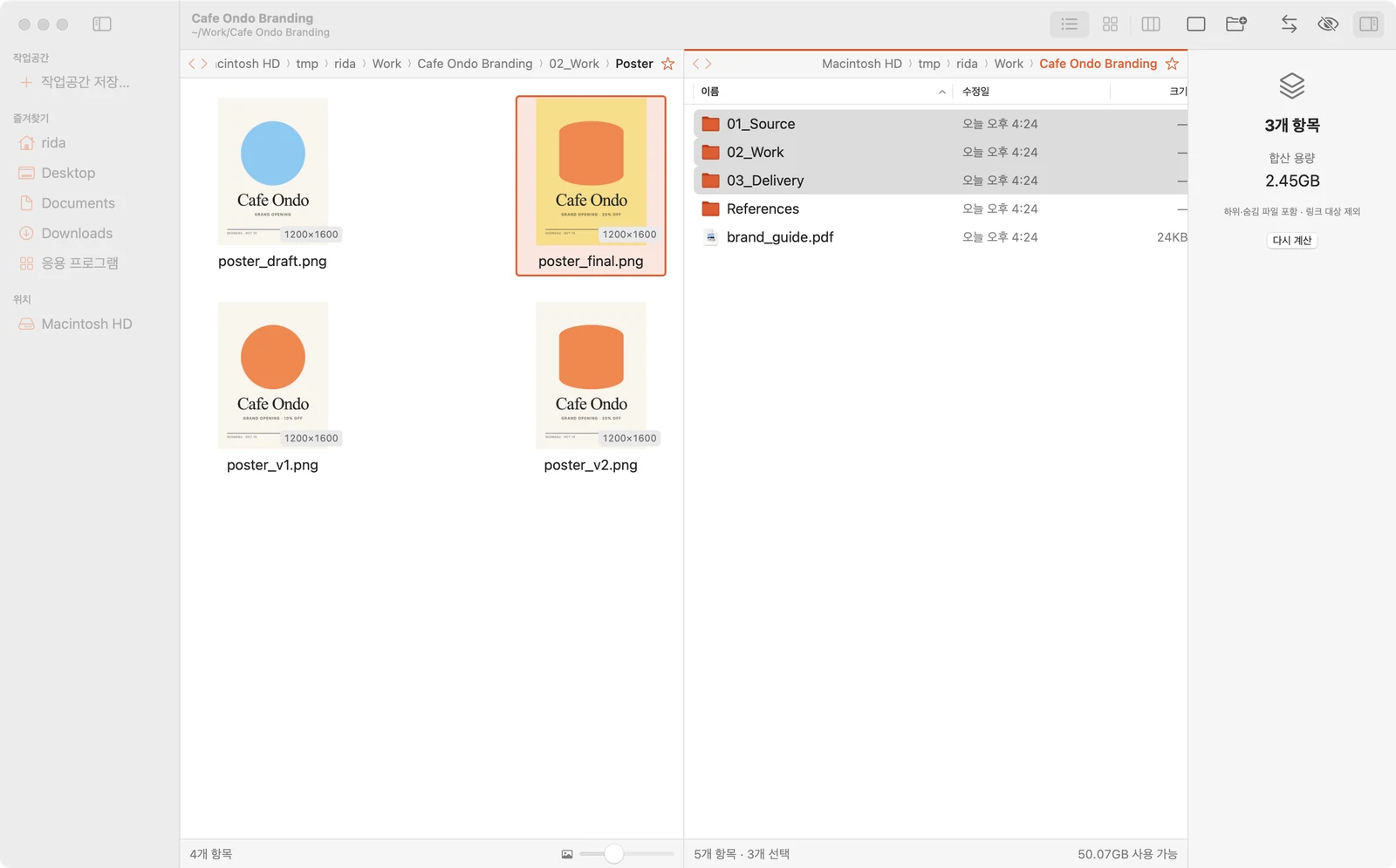
오른쪽 미리보기 패널(⌥⌘I)에서 파일을 열지 않고도 크기 · 해상도 · 색상 · 수정일 · 위치를 확인할 수 있습니다. 폴더를 선택하면 안에 든 파일까지 더한 전체 용량을 보여줍니다.The inspector (⌥⌘I) shows size, resolution, colour, dates and location. Pick a folder and it totals everything inside.

03_Delivery folder selected: total 1.3GB, 7 items
폴더 용량Folder size03_Delivery를 선택하면 하위 파일까지 합친 1.3GB를 보여주고, 내용이 바뀌면 다시 계산할 수 있습니다.Selecting 03_Delivery totals everything inside: 1.3GB. It recalculates after changes.
Three folders selected, combined 2.45GB
여러 개 합산Several at once여러 폴더를 함께 선택하면 합계(2.45GB)를 보여주어, 옮기기 전에 용량을 가늠할 수 있습니다.Three folders together: 2.45GB. Useful before copying to a drive.
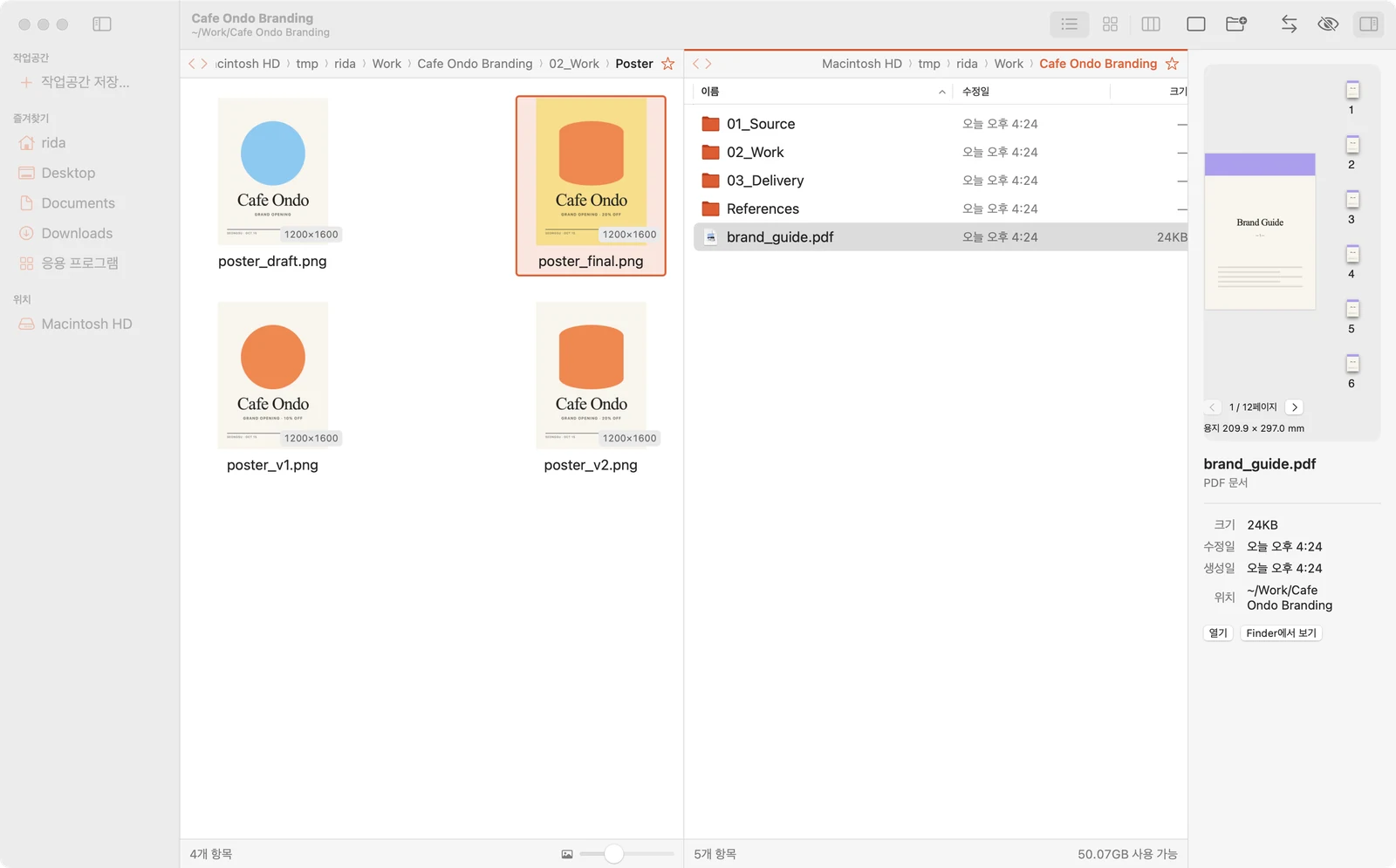
PDF in the inspector: page thumbnails, page 1 of 12, A4 210 × 297 mm
PDF 페이지 · 용지 규격PDF pages and paper size페이지 수와 용지 크기(mm)를 보여주고, 썸네일을 눌러 페이지를 넘겨 볼 수 있습니다.Page count and the current page's size in mm; click thumbnails to turn pages.
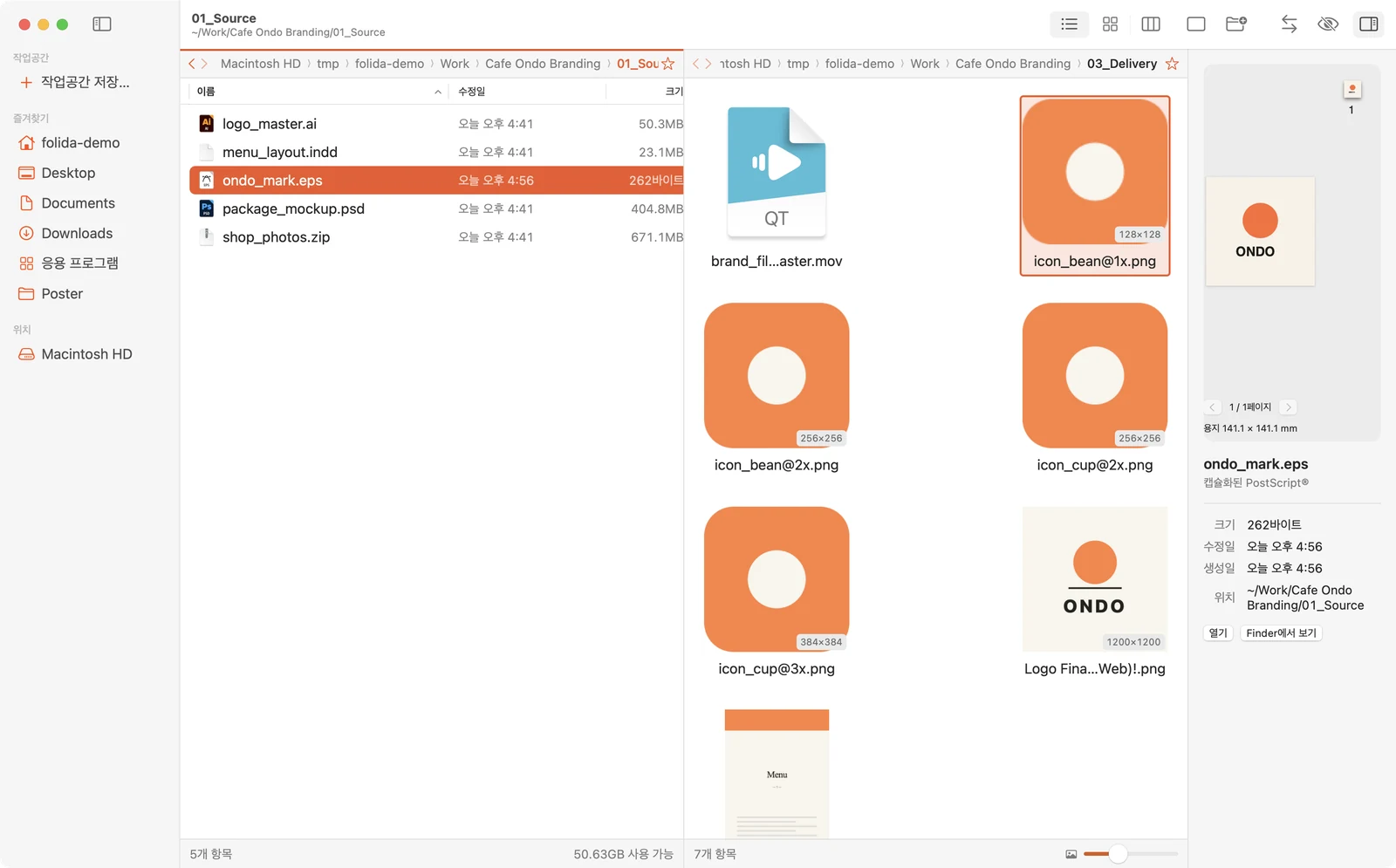
EPS file previewed in the inspector
EPS 미리보기EPS previewEPS 파일은 원본을 그대로 둔 채 임시 PDF로 만들어 미리 볼 수 있습니다. Ghostscript를 설치하면 사용할 수 있습니다.EPS is shown through a temporary PDF, leaving the original untouched. Needs Ghostscript installed separately.
03 — Find & Rename

찾고 이름 바꾸기Find and rename

⌘F로 지금 폴더를 이름과 확장자로 걸러내고, 걸러진 파일을 F2로 한 번에 이름 바꿀 수 있습니다. 바꾸기 전에 바뀔 이름을 모두 미리 볼 수 있습니다.Filter the folder by name and type with ⌘F, select what's left and rename it all with F2, previewing every new name first. Try it below.

일괄 이름변경 — 브라우저에서 동작Batch rename — runs in the browser
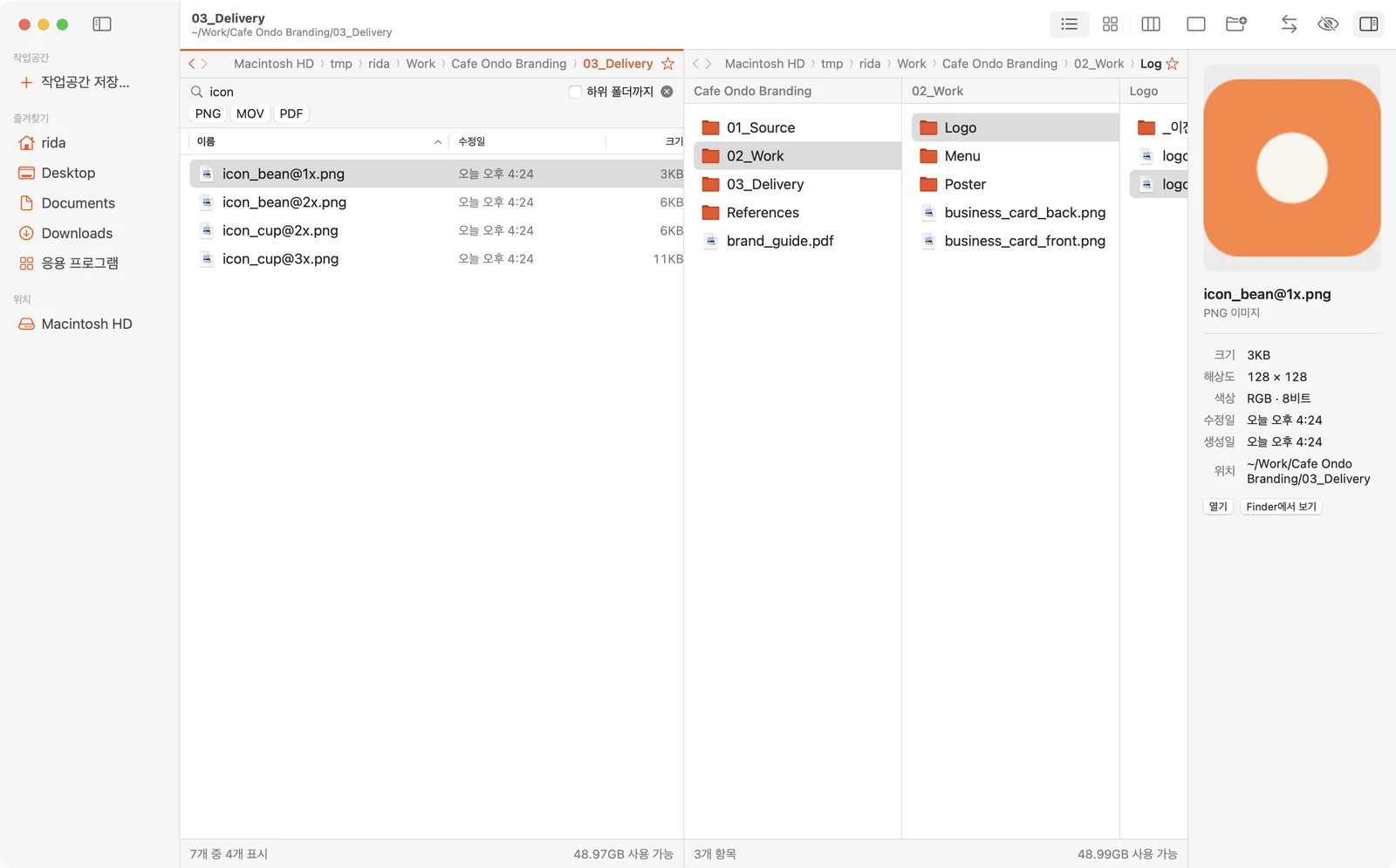
Filter bar with 'icon' typed and PNG, MOV, PDF chips; status bar shows 4 of 7
찾기 · 확장자 칩 ⌘FFilter and type chips ⌘F이름을 입력하는 즉시 걸러지고, 폴더에 있는 확장자를 칩으로 골라 볼 수 있습니다. 상태 표시줄에 ‘7개 중 4개 표시’처럼 나타나며, ‘하위 폴더까지’를 켜면 아래 폴더 전체에서 찾을 수 있습니다.Typing filters instantly; chips list only the types present. The status bar reads “4 of 7 shown”. “Include subfolders” searches everything below.
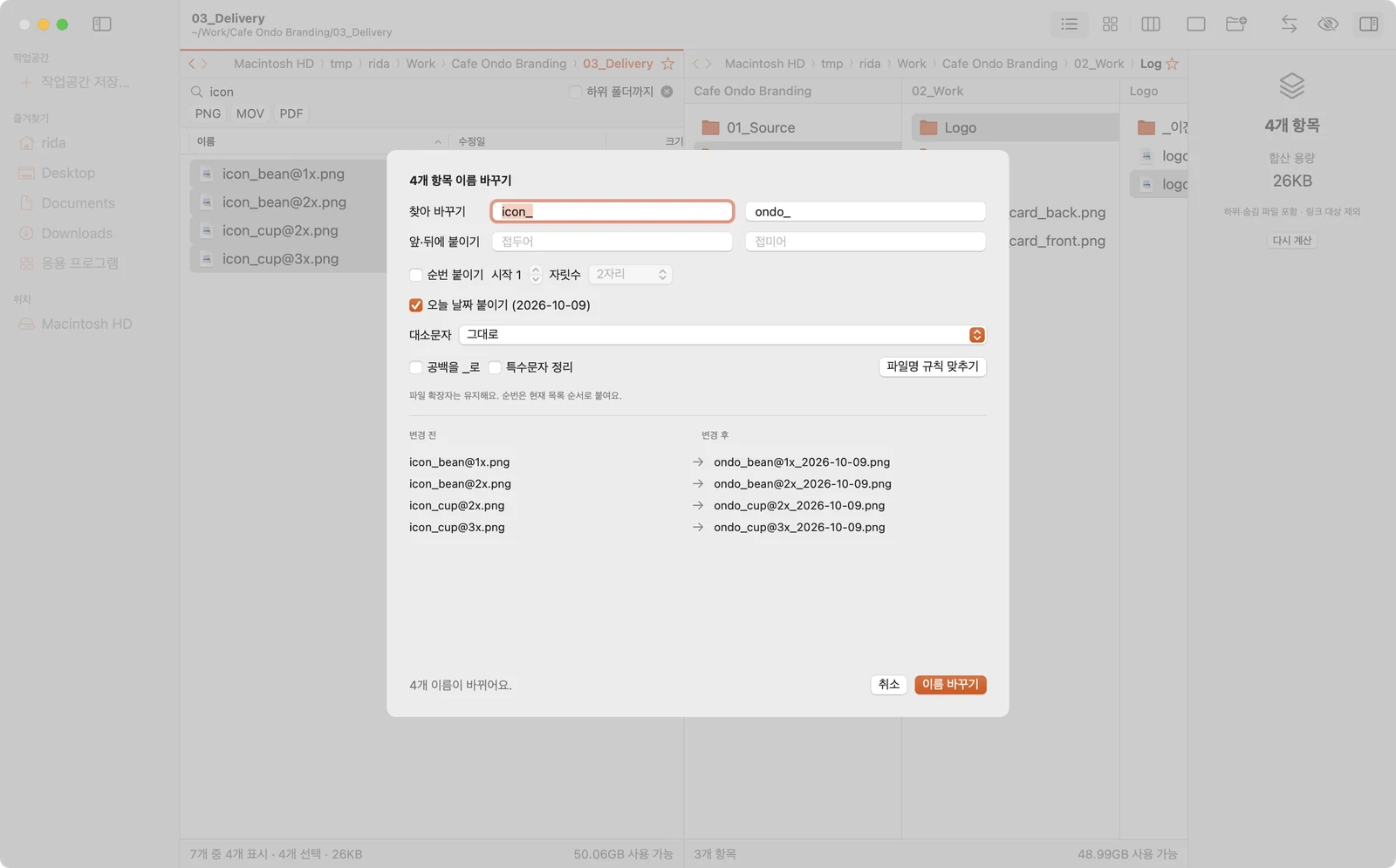
Batch rename sheet: icon_ replaced with ondo_, date added, before and after list
일괄 이름변경 F2Batch rename F2찾아 바꾸기 · 앞뒤 붙이기 · 날짜 · 순번 · 대소문자 · 공백 정리를 함께 쓸 수 있습니다. 확장자는 유지되고 이름이 겹치면 실행되지 않으며, 마지막 변경은 ⌘Z로 되돌릴 수 있습니다.Combine find/replace, prefix/suffix, date, numbering, case and space cleanup. Extensions stay; clashes block the run. ⌘Z undoes the last batch.
04 — Versions

버전 정리Version cleanup

‘최종’, ‘final’, ‘fix’, ‘v3’, 날짜, ‘복사본’처럼 꼬리말만 다른 파일을 한 묶음으로 찾아줍니다. 묶음마다 남길 파일 하나(기본은 가장 최근 파일)를 고르면 나머지는 같은 폴더의 _이전버전으로 옮겨집니다. 파일은 지워지지 않고 휴지통으로도 가지 않습니다.Same-type files that differ only by suffixes — final, fix, v3, dates, copy — are grouped. One file per group stays (the newest by default); the rest move into _이전버전 in the same folder. Nothing even goes to the Trash.

버전 정리 — 브라우저에서 동작Version cleanup — runs in the browser
~/Work/Cafe Ondo Branding/02_Work/Logo
logo_draft.png2026. 9. 27.
logo_final_fix.png2026. 10. 5.
logo_final_v3.png어제Yesterday최신Newest
logo_final.png2026. 10. 3.

logo.png · 3개 묶음logo.png · group of 3

final · final_fix · final_v3가 같은 작업으로 묶이고, 가장 최근 파일인 v3가 남습니다. draft는 이름 규칙이 달라 그대로 유지됩니다.final, final_fix and final_v3 form one group and v3, the newest, stays. draft follows a different pattern and is left alone.

앱에서는 묶음마다 남길 파일을 바꾸거나, 특정 묶음을 빼고 정리할 수도 있습니다.In the app you can pick a different file to keep, or leave a whole group out.

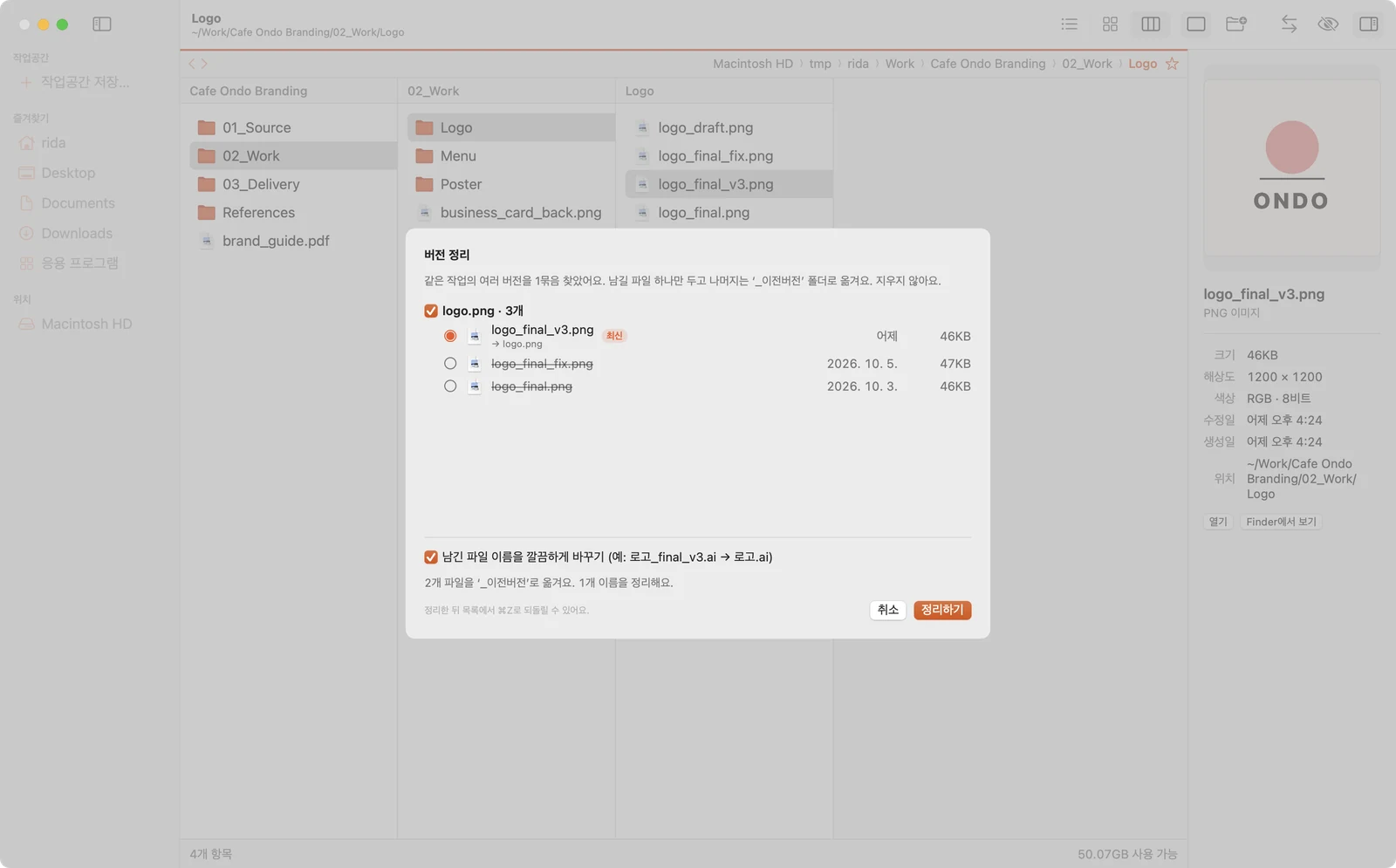
Version cleanup sheet: logo.png group of three, newest marked, rename option on
정리 전 — 버전 정리 창 ⌥⌘VBefore — the cleanup sheet ⌥⌘V묶음마다 수정일 순으로 정렬되고 최신 파일에 표시가 붙습니다. 아래에서 옮겨질 파일 수와 바뀔 이름을 확인할 수 있습니다.Each group lists files by date with the newest marked; a summary shows how many move and what gets renamed.
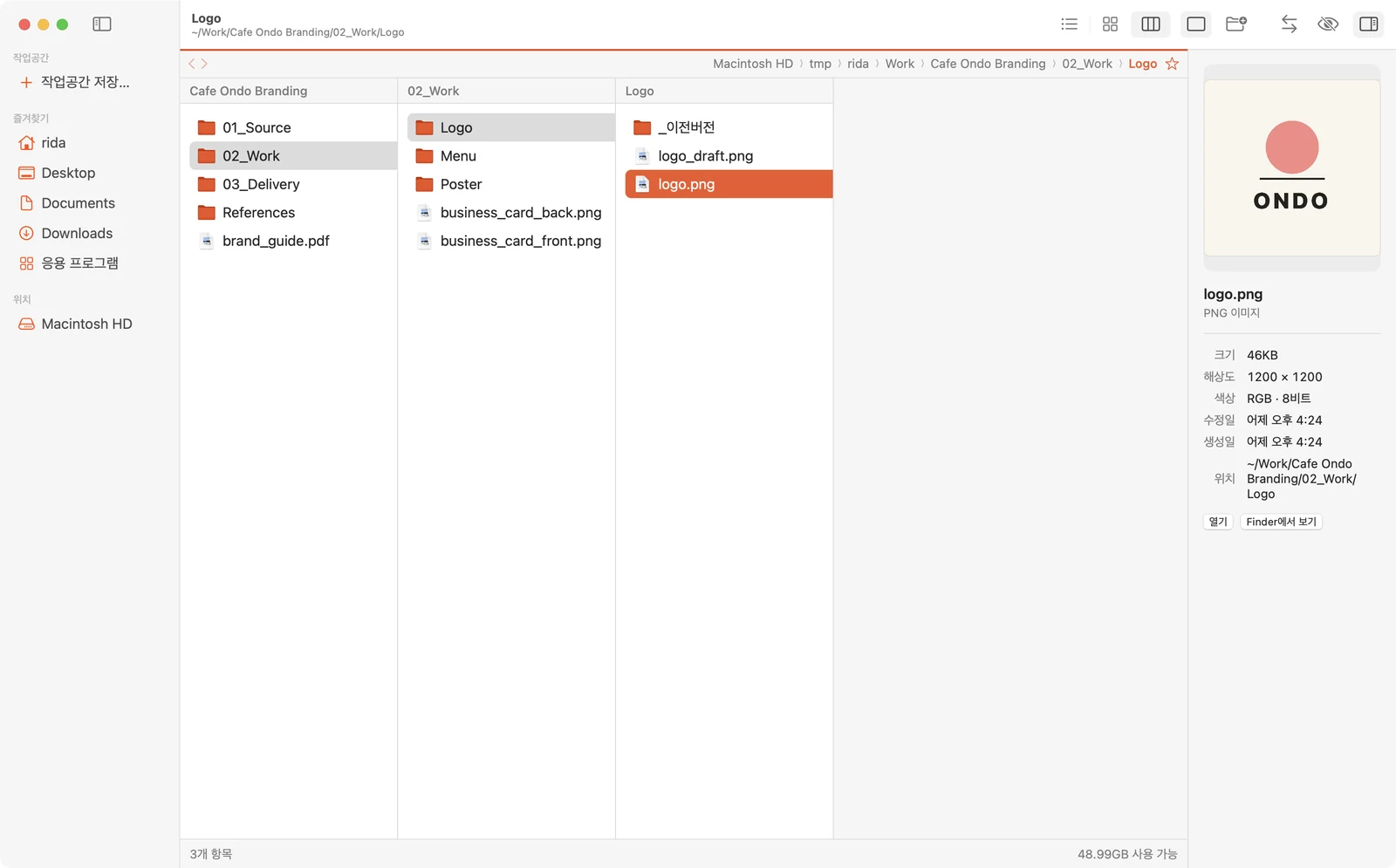
After cleanup: _이전버전 folder, logo_draft.png and logo.png remain
정리 후After정리 후 폴더에는 _이전버전, logo_draft.png, logo.png만 남습니다.The folder now holds _이전버전, logo_draft.png and logo.png.
05 — Compare

시안 비교Comparing drafts

두 이미지나 PDF를 선택하고 ‘나란히 비교’를 누르면 비교 창이 열립니다. 한쪽을 확대하거나 스크롤하면 다른 쪽도 같은 위치로 함께 움직여, 같은 부분을 나란히 놓고 비교할 수 있습니다. 아래에서 앱과 같은 네 가지 방식으로 두 포스터를 비교해 볼 수 있습니다.Select two images or PDFs and choose Compare from the File menu. The modes below match the app's four, computed live on the same two posters.

poster_v1.png ↔ poster_v2.png
poster_v1: orange circle, 10% off poster_v2: rounded rectangle, 20% off v1v2
Compare window in difference mode, 4.1% changed
앱의 차이만 보기Difference mode in the app달라진 픽셀을 강조하고 오른쪽 아래에 ‘달라진 곳 4.1%’를 표시합니다. 크기가 다른 두 그림도 크기를 맞춰 비교할 수 있습니다.Changed pixels are highlighted with “4.1% changed” in the corner. Images of different sizes are fitted and you're told so.
Two menu PDFs side by side, pages synced
PDF 나란히 비교PDFs side by side메뉴판 v1과 v2_rev를 함께 넘겨 볼 수 있습니다. 페이지 · 확대 · 스크롤이 같이 움직이며, 필요하면 따로 움직이도록 끌 수 있습니다.Menu v1 and v2_rev turn together — page, zoom and scroll stay in sync unless you switch it off.
06 — Delivery

최종 전달 파일 준비Getting a delivery ready

파일을 보내기 전에 확인하고 정리할 수 있는 기능들입니다. 파일 메뉴나 우클릭 메뉴에서 사용할 수 있고, 원본은 그대로 둔 채 확인하거나 사본을 만듭니다.Five tools for right before sending. All live in the File and right-click menus, and they only check or copy — originals stay as they are.

Delivery check: one large file, one bad file name, one missing scale

납품 체크Delivery check

폴더를 검사해 아래 세 가지를 찾아줍니다.Scans a folder for three things.

  1. 큰 파일 — 정해 둔 기준(MB)보다 큰 파일을 찾을 수 있습니다. 화면에서는 1.3GB 영상이 표시되었습니다.Large files above a size you set — here a 1.3GB film.
  2. 파일명 — 공백 · 특수문자 · 대문자가 들어간 이름을 찾을 수 있습니다. ‘Logo Final (Web)!.png’가 표시되었습니다.Names with spaces, symbols or capitals (optional) — “Logo Final (Web)!.png”.
  3. 빠진 배율 — @2x만 있고 @1x가 없는 이미지를 알려줍니다. 화면에서는 icon_cup@1x가 빠진 것을 찾았습니다.Missing scales — an @2x without its @1x, like icon_cup.

항목을 두 번 누르면 해당 파일로 바로 이동할 수 있습니다.Double-click an item to jump to it in the app.

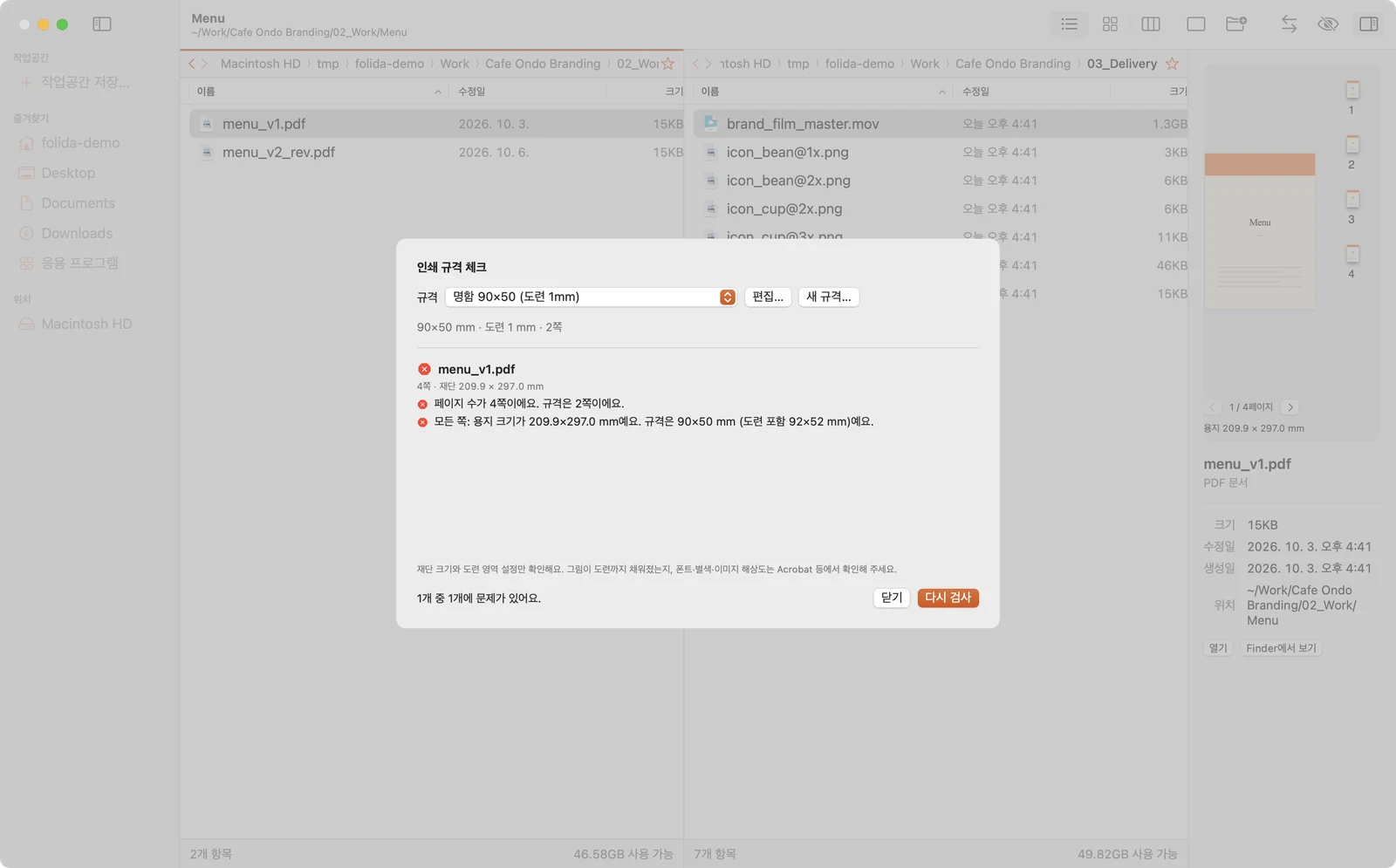
Print spec check: business card spec against a menu PDF, two warnings

인쇄 규격 체크Print spec check

인쇄소마다 다른 재단 크기 · 도련 · 페이지 수를 규격으로 저장해 두고, PDF가 규격에 맞는지 확인할 수 있습니다.Save each print shop's trim size, bleed and page count as a spec and check PDFs against it.

  1. PDF를 선택하고 ‘인쇄 규격 체크…’를 엽니다.Select a PDF and open Print Spec Check.
  2. 규격(예: 명함 90×50mm, 도련 1mm)을 고르면 맞지 않는 페이지와 이유를 볼 수 있습니다.Pick a spec (say a 90×50mm card, 1mm bleed) to see which pages fail and why.
  3. 자주 쓰는 인쇄소 규격은 ‘새 규격…’으로 추가해 둘 수 있습니다.Add the shops you use with “New spec…”.
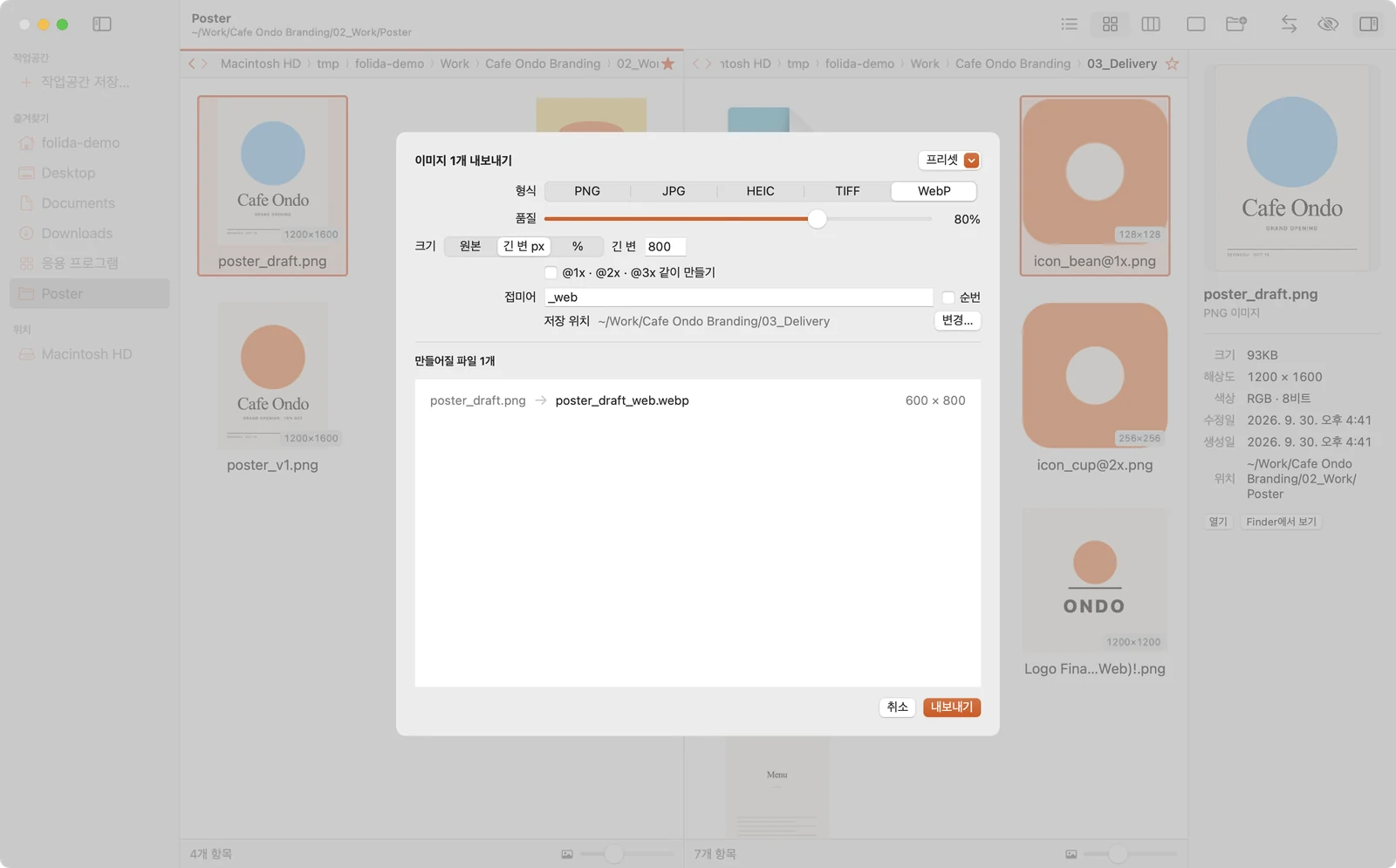
Image export sheet: format, size, scale and file name preview

이미지 내보내기 ⌘EImage export ⌘E

선택한 이미지를 한 번에 다른 형식과 크기로 저장할 수 있습니다.Save selected images in another format and size, all at once.

  • 형식: PNG · JPG · HEIC · TIFF (cwebp가 있으면 WebP)Formats: PNG, JPG, HEIC, TIFF (WebP when cwebp is installed)
  • 크기: 원본 · 긴 변 px · %, 배율 @1x · @2x · @3xSize: original, long edge in px or %, plus @1x / @2x / @3x
  • 이름: 접미어 · 순번, 저장 위치는 기본으로 반대 패널Names: suffix and numbering; saves to the other pane by default
  • 자주 쓰는 설정은 프리셋으로 저장 가능Save frequent settings as presets
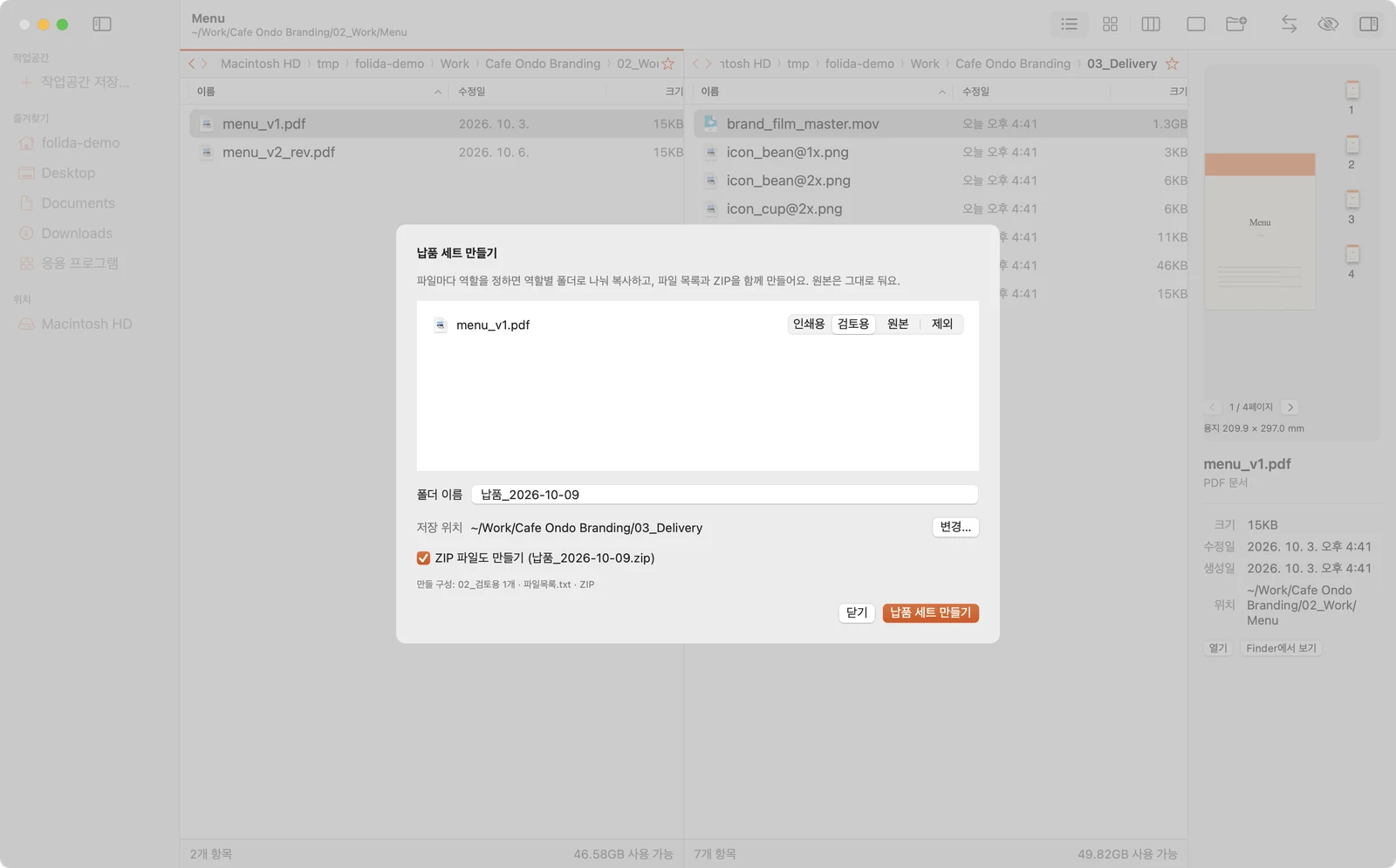
Delivery set sheet: files assigned to roles, folder and ZIP options

납품 세트 만들기Delivery set

선택한 파일을 검토용 · 인쇄용처럼 역할별로 나눠 새 폴더에 담고, 필요하면 ZIP으로 묶을 수 있습니다. 만들어질 폴더 구성을 먼저 확인할 수 있습니다.Sort selected files into roles such as review and print, put them in a new folder and zip it if needed — with the structure shown first.

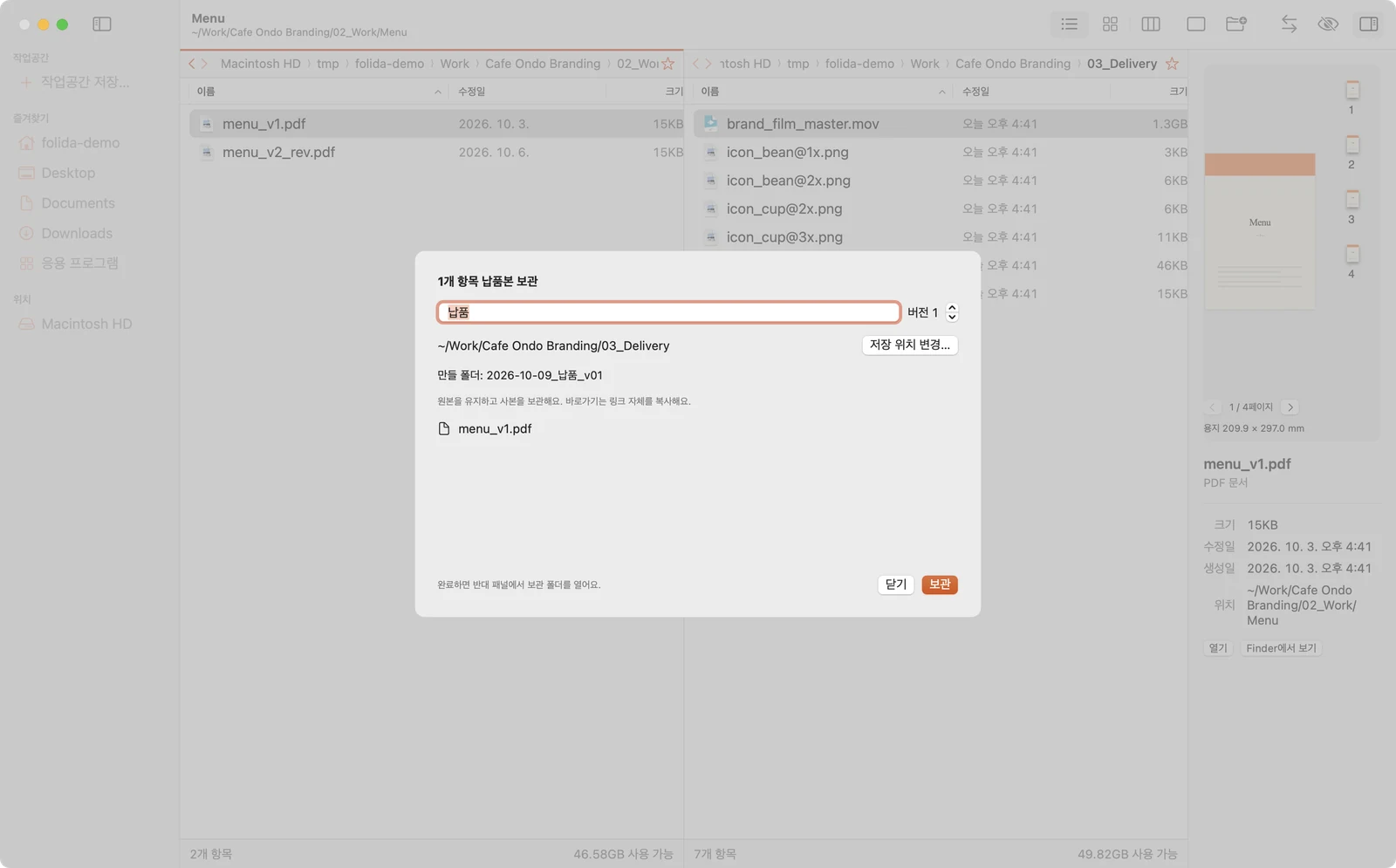
Archive sheet: name, version and destination for a delivery copy

납품본 보관Archive a delivery

보낸 파일을 그대로 따로 보관해 두어, 나중에 어떤 파일을 보냈는지 바로 찾아볼 수 있습니다.Keeps an exact copy of what was sent, so “what did we send then?” has an answer.

  1. 파일을 선택하고 우클릭 메뉴에서 ‘납품본 보관…’을 엽니다.Select files, right-click “Archive Delivery…”.
  2. 이름 · 버전 · 위치를 정하면 2026-10-06_납품_v01 같은 새 폴더에 사본이 만들어집니다. 기본 위치는 반대 패널입니다.Set name, version and place; a copy lands in a new folder such as 2026-10-06_납품_v01, by default in the other pane.
  3. 원본과 이전 보관본은 그대로 유지되고, 중간에 취소하면 만들던 사본은 휴지통으로 이동합니다.Originals and older archives stay; a cancelled copy goes to the Trash.
07 — AI (MCP)

AI에게 맡기는 정리Cleanup by AI

Claude Code나 Codex 같은 AI 앱에 Folida를 연결하면, 말로 부탁한 정리를 AI가 계획하고 Folida가 실행합니다. AI가 파일을 직접 옮기지 않도록 했고, 바뀔 내용을 Folida 창에서 먼저 확인하고 승인해야 실행됩니다.Connect Folida to an AI app such as Claude Code or Codex and it plans the cleanup you ask for while Folida carries it out. The AI never moves files itself: Folida shows the change first and runs it only after you approve.

MCP 연결What MCP isMCP는 AI 앱이 다른 앱의 기능을 도구처럼 사용할 수 있게 해주는 연결 방식입니다. Folida는 폴더 읽기와 정리에 쓰는 도구 11개를 제공합니다.A way for AI apps to use another app's features as tools. Folida offers eleven: folder reading plus cleanup.
접근 범위 설정How far it can see설정의 ‘AI 연동’에 추가한 폴더 안에서만 동작하며, 범위 밖의 폴더는 열어볼 수 없도록 했습니다.Only folders listed under Settings → AI. Anything outside is refused.
삭제 기능 제외No delete toolAI가 파일을 지우거나 휴지통으로 보내지 못하도록 했습니다. 옮기기 · 이름 바꾸기 · 사본 만들기만 할 수 있고, 마지막 정리는 ⌘Z로 되돌릴 수 있습니다.The AI gets no delete or Trash. It can move, rename and copy, and ⌘Z undoes the last cleanup.

처음 한 번 연결하기Connect once

Folida 설정의 ‘AI 연동’에서 AI가 사용할 폴더를 고르고, 안내된 명령을 터미널에 한 번 입력하면 연결됩니다. Folida 앱 안의 도우미(folida-mcp)를 AI 앱에 등록하는 명령입니다.In Folida's Settings → AI, choose the folders the AI may see, then paste the command shown there into Terminal once. It registers the small helper inside the app (folida-mcp) with your AI app.

# Claude Code
claude mcp add --transport stdio folida -- ~/Applications/Folida.app/Contents/Helpers/folida-mcp

# Codex
codex mcp add folida -- ~/Applications/Folida.app/Contents/Helpers/folida-mcp

연결한 뒤 새로 시작한 AI 대화부터 Folida 도구를 사용할 수 있으며, 정리 기능은 Folida 앱이 켜져 있을 때 동작합니다.The tools appear in AI sessions started after connecting, and cleanup needs Folida running.

말로 부탁하기Ask in plain words

AI가 먼저 폴더 내용을 확인한 뒤, 정리 계획을 Folida로 보냅니다. 아래는 예시 대화입니다.The AI reads the folder first, then sends a plan to Folida. An example exchange:

Downloads 폴더 종류별로 정리해 줘Sort my Downloads folder by type
list_folder로 Downloads를 봤어요. 사진 IMG_2041.jpg는 Images로, 견적서 quote_cafe_ondo.pdf는 Documents로 옮기는 계획을 Folida에 보냈어요. Folida 창에서 확인하고 승인해 주세요.I read Downloads with list_folder. I sent Folida a plan: IMG_2041.jpg to Images and quote_cafe_ondo.pdf to Documents. Please check and approve it in Folida.
“이 폴더에서 버전 파일 찾아서 최신만 남겨 줘”“Find version files here and keep only the newest”find_versions → version_cleanup
“선택한 파일 이름 앞에 ondo_ 붙여 줘”“Put ondo_ in front of the selected files”current_panes → batch_rename
“03_Delivery를 오늘 날짜로 보관해 줘”“Archive 03_Delivery under today's date”delivery_archive
“Work 폴더 용량이 얼마야?”“How big is the Work folder?”folder_size

Folida에서 승인하기Approve in Folida

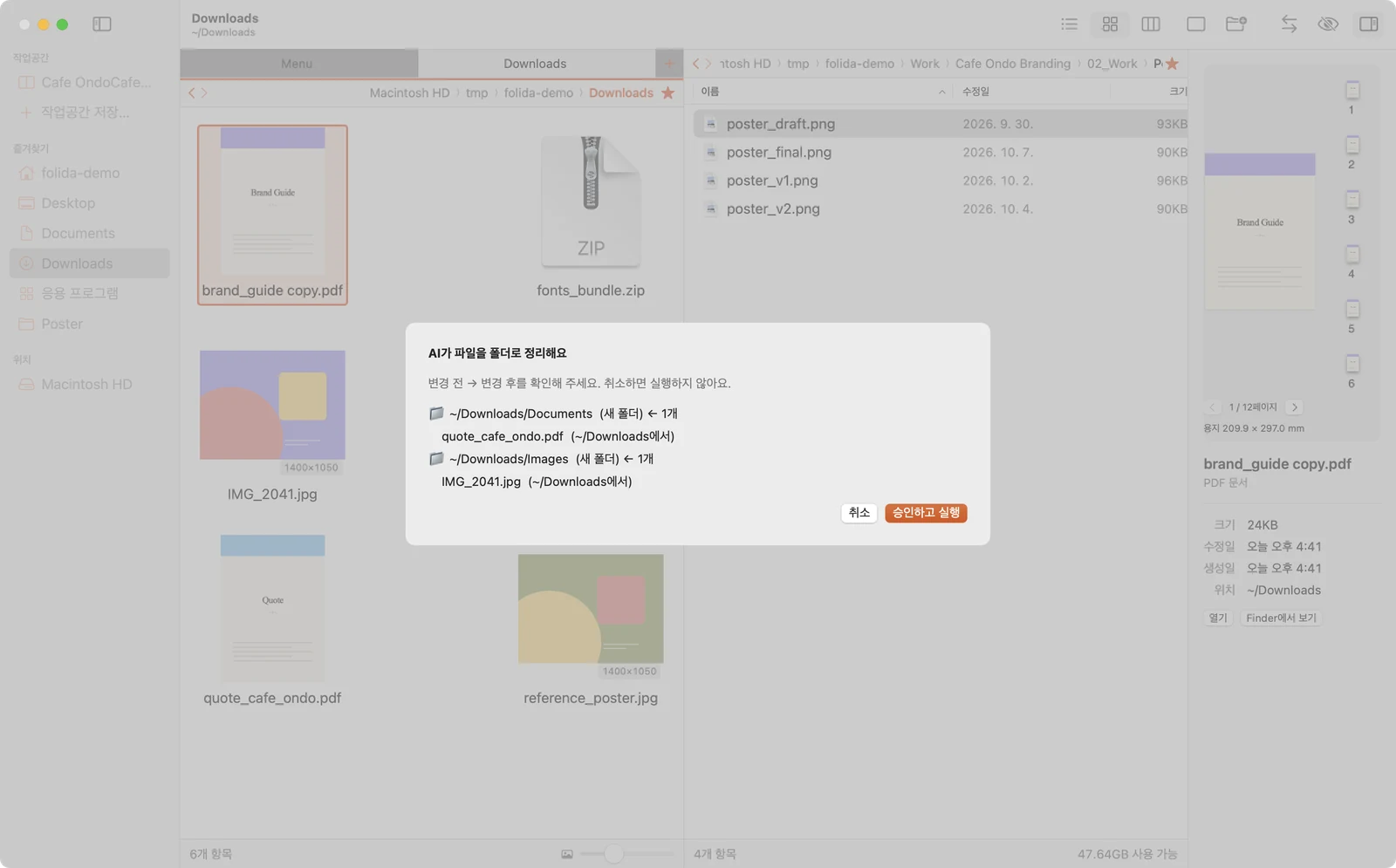
파일을 바꾸는 요청은 모두 Folida의 승인 창에 나타납니다. ‘변경 전 → 변경 후’를 한 줄씩 확인한 뒤 승인해야 실행되고, 원하지 않으면 취소할 수 있습니다.Every change arrives as an approval sheet in Folida, listing before → after line by line. Nothing happens until you approve; cancel if it's wrong.

Folida approval sheet listing two moves from Downloads into new Images and Documents folders

정리 결과Moved as planned

승인하면 Downloads 안에 Images와 Documents 폴더가 만들어지고 두 파일이 옮겨집니다. 필요한 폴더는 새로 만들고, 지워지는 파일은 없습니다.After approval, Images and Documents appear inside Downloads with the two files. Missing folders are created; nothing is deleted.

Downloads with new Images and Documents folders

되돌리기Back with ⌘Z

결과가 마음에 들지 않으면 파일 목록에서 ⌘Z로 마지막 AI 정리를 취소할 수 있고, 두 파일은 원래 자리로 돌아갑니다.Not happy? Press ⌘Z in the file list. The last AI cleanup is reversed and both files return to Downloads.

Downloads after undo, files back in place
AI가 쓸 수 있는 도구 11개The eleven tools
도구Tool하는 일What it does승인Approval
current_panes지금 좌우 패널의 폴더와 선택한 항목Folders and selection in both panes읽기Read
list_folder폴더 안 목록 (최대 1,000개)List a folder (up to 1,000 items)읽기Read
find_name하위 폴더까지 이름으로 찾기Find by name in subfolders읽기Read
folder_size폴더 전체 용량Total folder size읽기Read
workspaces저장한 작업공간 목록Saved workspaces읽기Read
find_versions꼬리말만 다른 버전 묶음 찾기Find version groups읽기Read
navigate왼쪽 · 오른쪽 패널을 다른 폴더로 이동Point a pane at another folder승인 필요Approval
batch_rename일괄 이름변경 (확장자 유지)Batch rename, extensions kept승인 필요Approval
organize_files파일을 폴더로 옮겨 정리, 없는 폴더는 만듦Move files into folders, creating them if needed승인 필요Approval
version_cleanup최신만 남기고 나머지를 _이전버전으로Keep the newest, move the rest to _이전버전승인 필요Approval
delivery_archive새 폴더에 납품본 사본 보관Archive a delivery copy승인 필요Approval
08 — Cleanup

폴더 정리Tidying folders

쌓인 사본을 찾고, 두 폴더의 차이를 확인하고, 압축 파일을 다룰 수 있습니다.Find stray copies, check two folders match, and handle ZIPs.

Duplicate finder: seven groups with a file to keep in each

중복 파일 찾기Duplicate finder

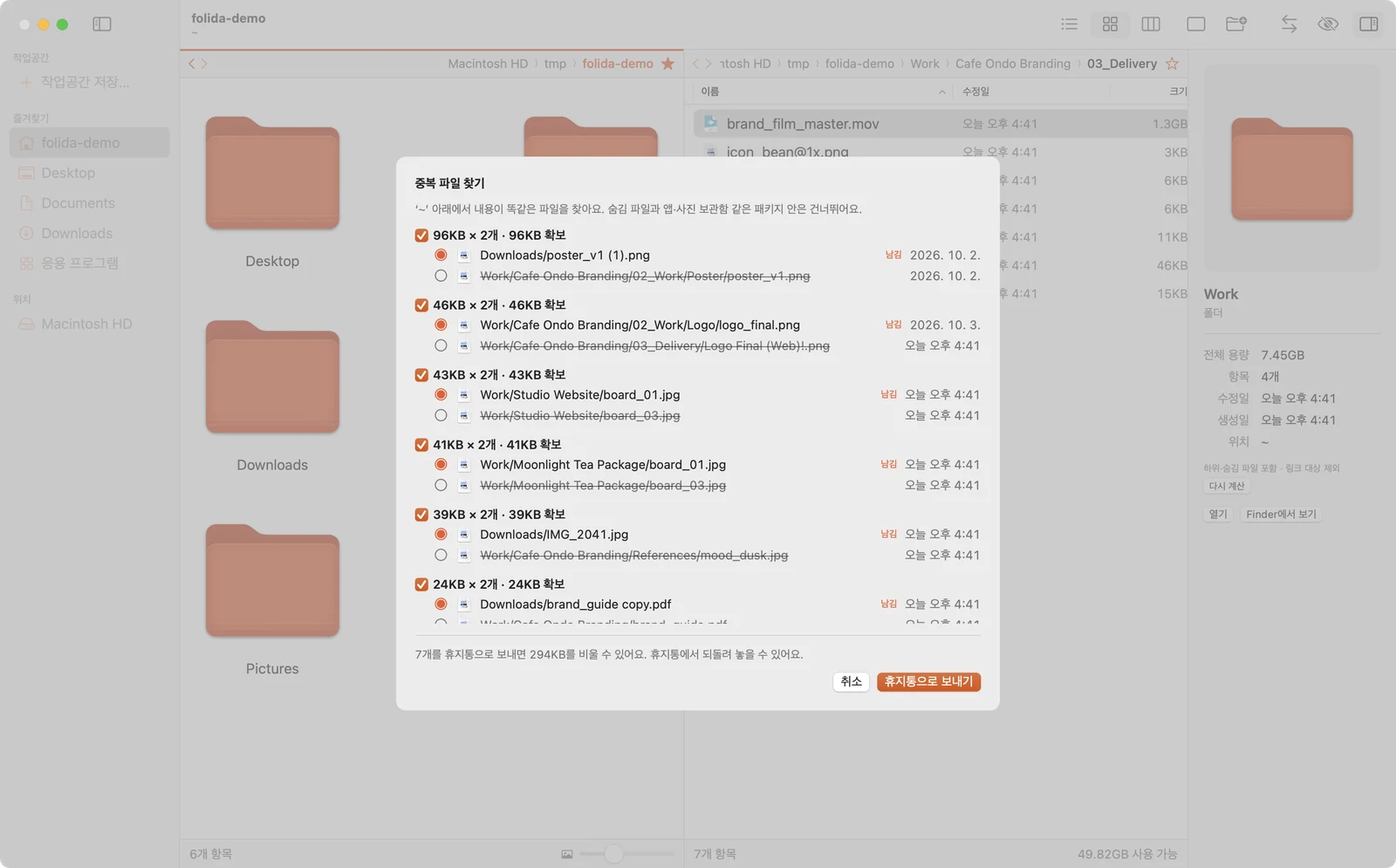
이름이 달라도 내용이 완전히 같은 파일을 찾아줍니다. ‘poster_v1 (1).png’, ‘brand_guide copy.pdf’ 같은 다운로드 사본을 정리할 때 쓸 수 있습니다.Finds files with identical content even under different names — download copies like “poster_v1 (1).png”.

  1. 폴더를 우클릭하거나 파일 메뉴에서 ‘중복 파일 찾기…’를 엽니다.Right-click a folder or use File → Find Duplicates…
  2. 크기가 같은 파일끼리 내용을 비교해 묶음으로 보여줍니다(하위 폴더 포함).Files of equal size are compared by content and grouped, subfolders included.
  3. 묶음마다 남길 파일을 고르면 나머지는 휴지통으로 이동하고, 확보할 수 있는 용량도 확인할 수 있습니다.Choose one to keep per group; the rest go to the Trash. Space you'll free is shown.
Folder compare: items only on one side, newer and different sizes

두 패널 폴더 비교 ⇧⌘CFolder compare ⇧⌘C

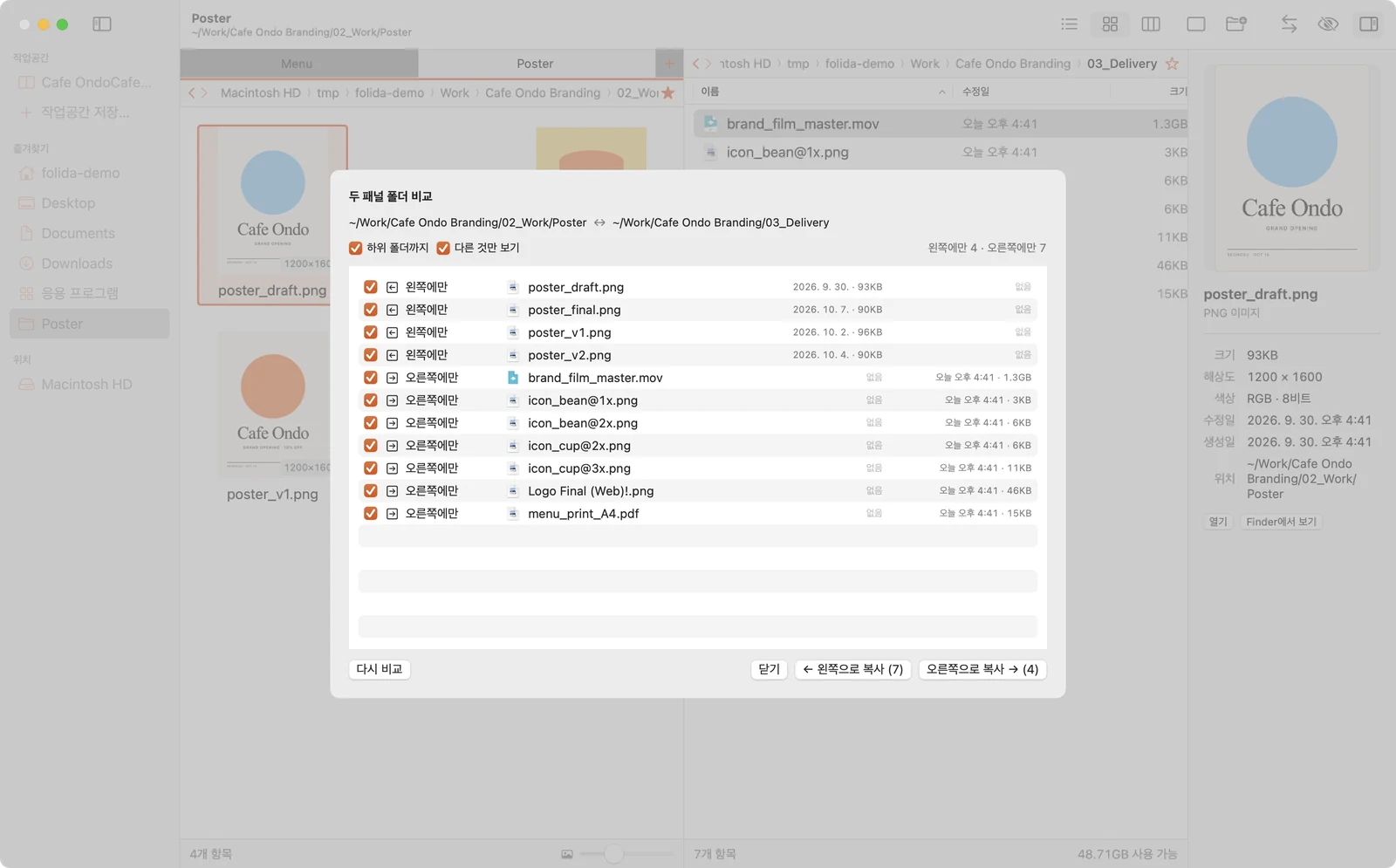
왼쪽 원본 폴더와 오른쪽 납품 폴더를 이름 기준으로 비교할 수 있습니다.Matches the left (source) and right (delivery) folders by name.

  • 한쪽에만 있는 파일, 더 최신인 파일, 크기가 다른 파일, 같은 파일로 나눠 보여줍니다Marks items only on one side, newer, different size or the same
  • 필요한 항목을 골라 반대쪽으로 복사할 수 있습니다 (하위 폴더 포함 선택)Copy chosen items across, subfolders optional
  • 비교 창에서는 파일을 지울 수 없도록 했습니다There is no delete here
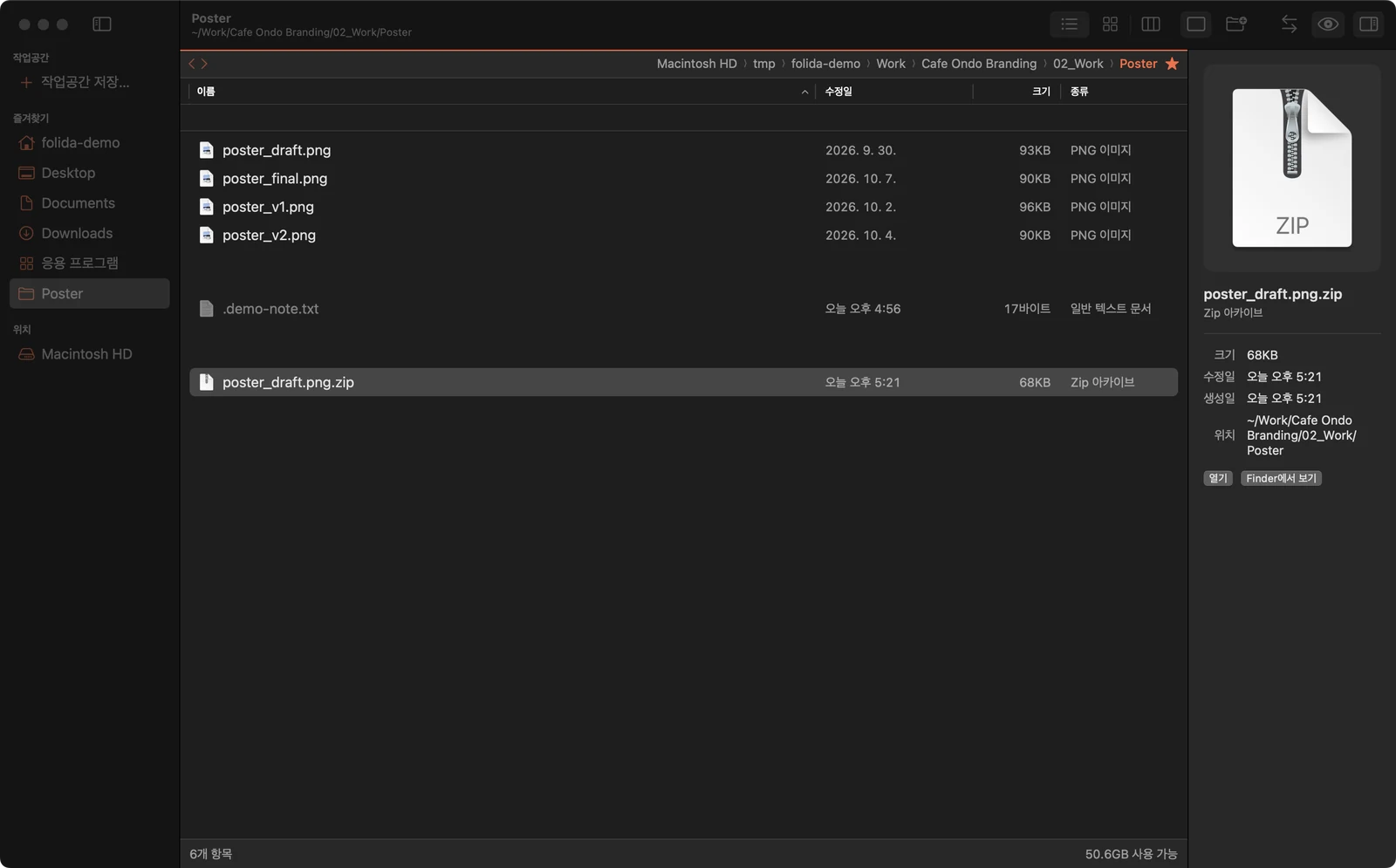
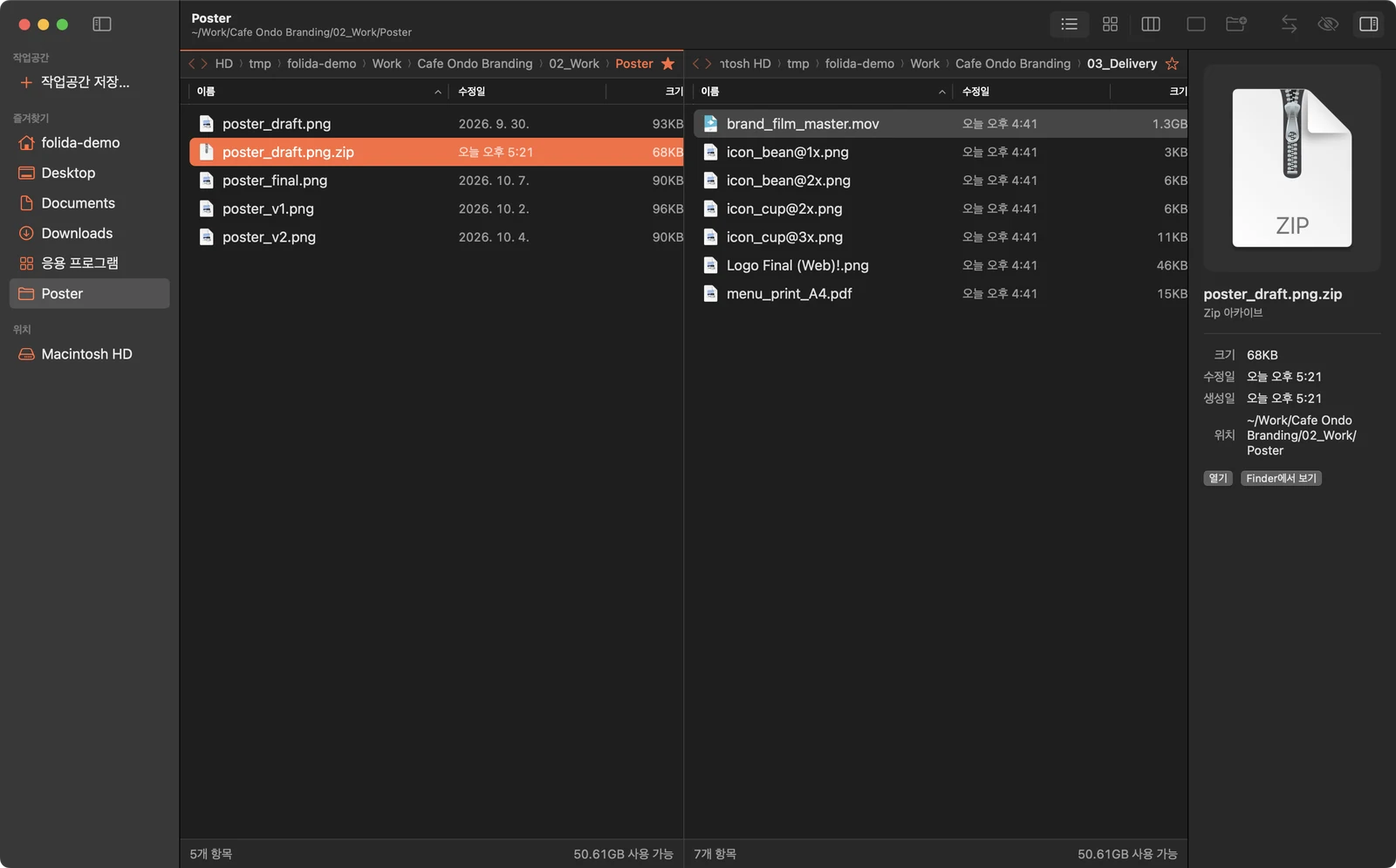
poster_draft.png.zip created next to the original

압축하기 · .zip 풀기Compress · unzip

우클릭 메뉴의 ‘압축하기’로 바로 ZIP을 만들 수 있고, 여러 개를 고르면 ‘보관.zip’ 하나로 묶입니다. ‘.zip 풀기’는 같은 폴더의 새 폴더에 풀어주며 원본 ZIP은 그대로 남습니다.Right-click → Compress makes a ZIP; several items become one archive. Unzip extracts into a new folder beside it and keeps the ZIP.

이름이 겹치면 ‘이름 2’로 만들어지고, 실패하면 만들던 파일은 휴지통으로 이동합니다.Clashing names get a “2”; a failed run sends the partial file to the Trash.

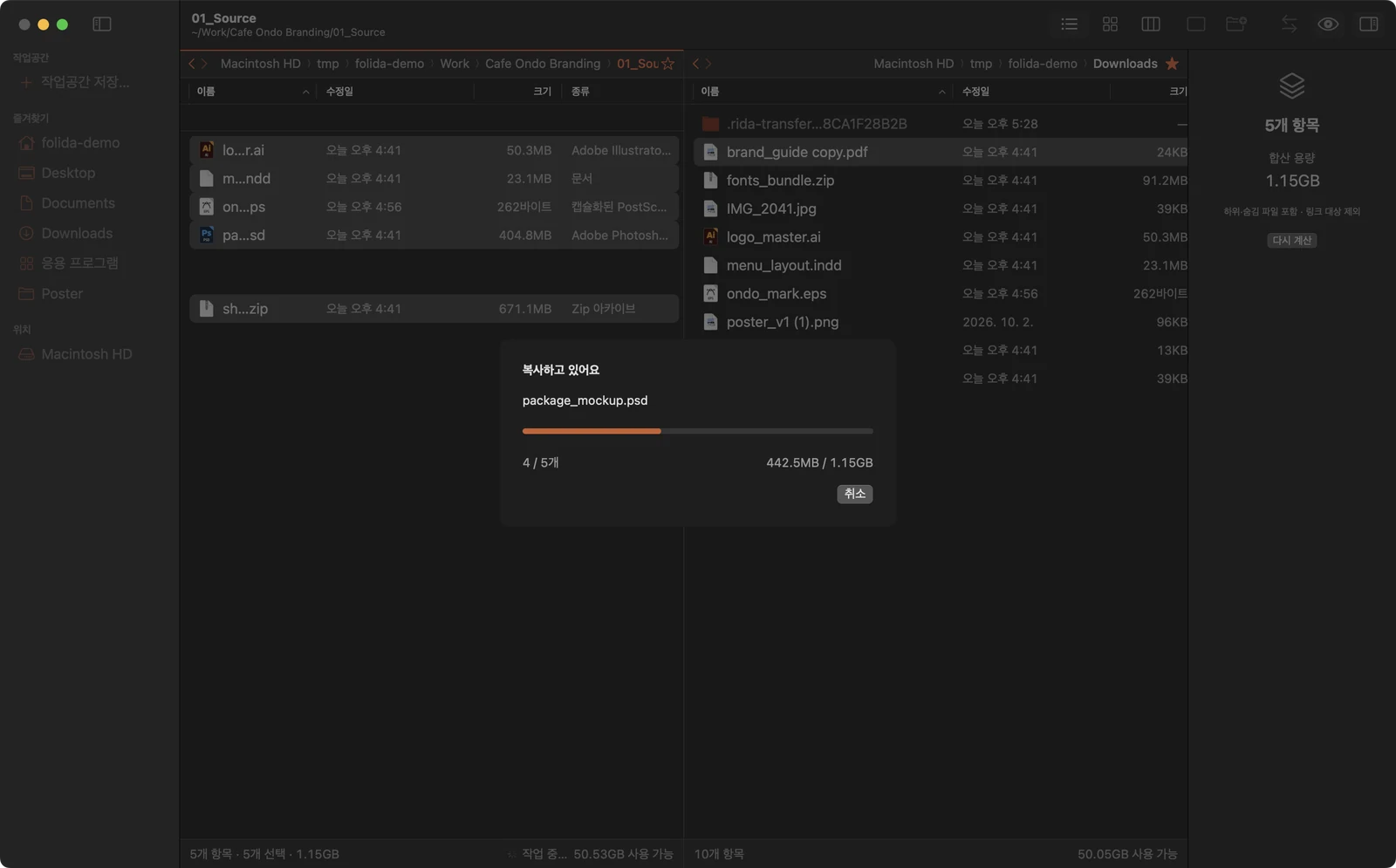
Copy progress sheet: 4 of 5 files, 442.5MB of 1.15GB

복사 · 이동 진행률 F5 F6Copy and move progress F5 F6

0.5초 넘게 걸리는 복사 · 이동은 진행률 창에서 현재 파일 · 개수 · 용량을 확인하고 취소할 수 있습니다.Copies and moves longer than half a second show a progress sheet with current file, count, size and cancel.

취소하거나 실패하면 만들던 사본만 휴지통으로 이동하고, 다른 디스크로 옮길 때는 복사가 모두 끝난 뒤에 원본을 지우도록 했습니다.Cancel or failure trashes only the partial copy. Moving across disks deletes originals only after copying finishes.

09 — Everyday

매일 쓰는 것들Day-to-day

프로젝트를 시작하고, 하던 작업을 이어가고, 다른 앱과 오갈 때 쓸 수 있는 기능입니다.For starting projects, picking up where you left off and moving between apps.

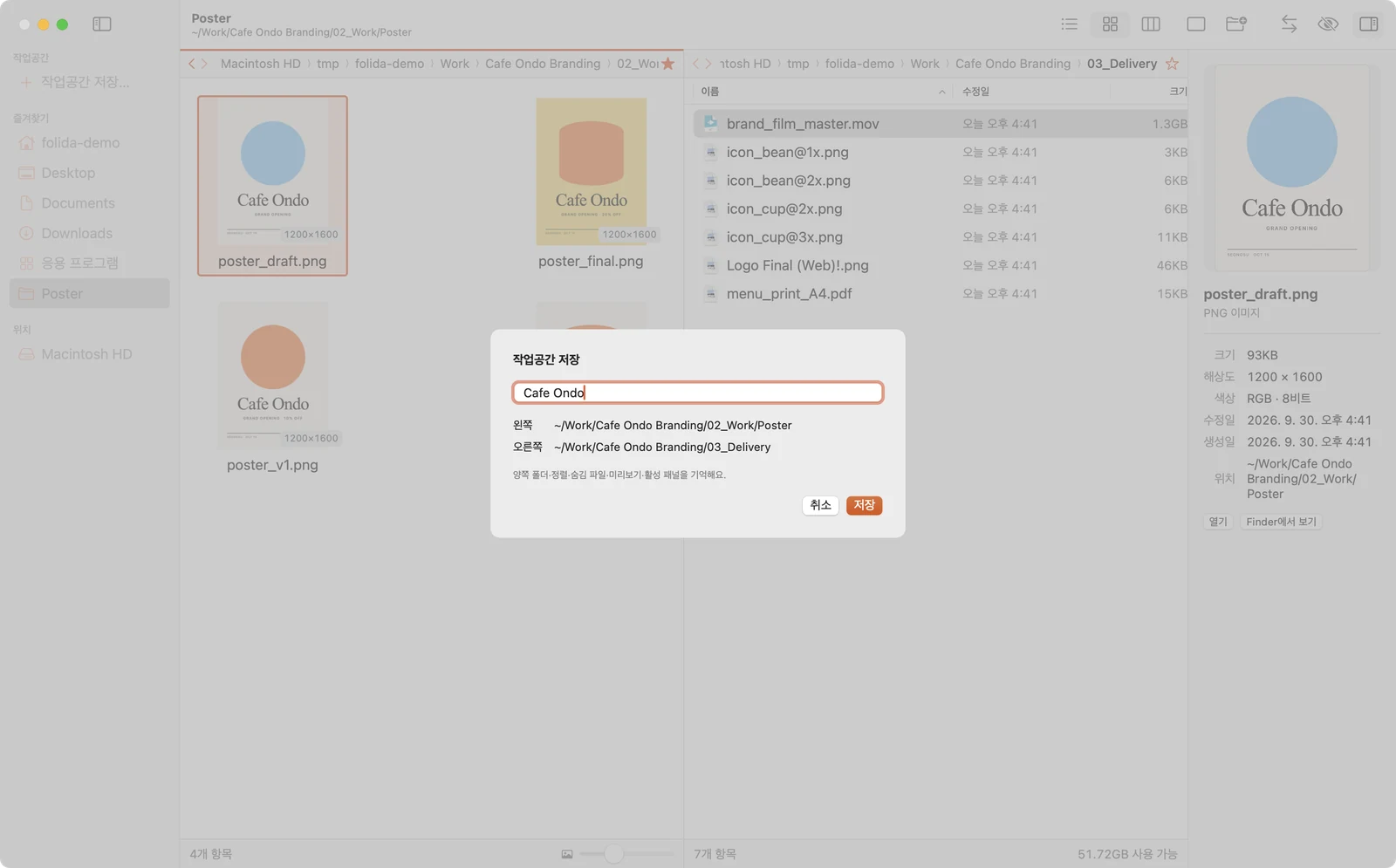
Save workspace sheet with a project name

작업공간 저장Saving a workspace

사이드바의 ‘작업공간 저장…’에 프로젝트 이름을 붙이면 좌우 폴더, 정렬, 보기 방식, 썸네일 · 글자 크기, 미리보기 상태까지 그대로 저장할 수 있습니다.Name the current state under “Save Workspace…” and it remembers everything: both folders, sorting, hidden files, view modes, sizes, inspector and active pane.

  1. 저장한 이름을 누르면 그 상태로 다시 열 수 있습니다.Click the name to restore it.
  2. 우클릭으로 현재 상태로 업데이트하거나 목록에서 뺄 수 있으며, 실제 폴더는 그대로 유지됩니다.Right-click to update or remove it; real folders are untouched.
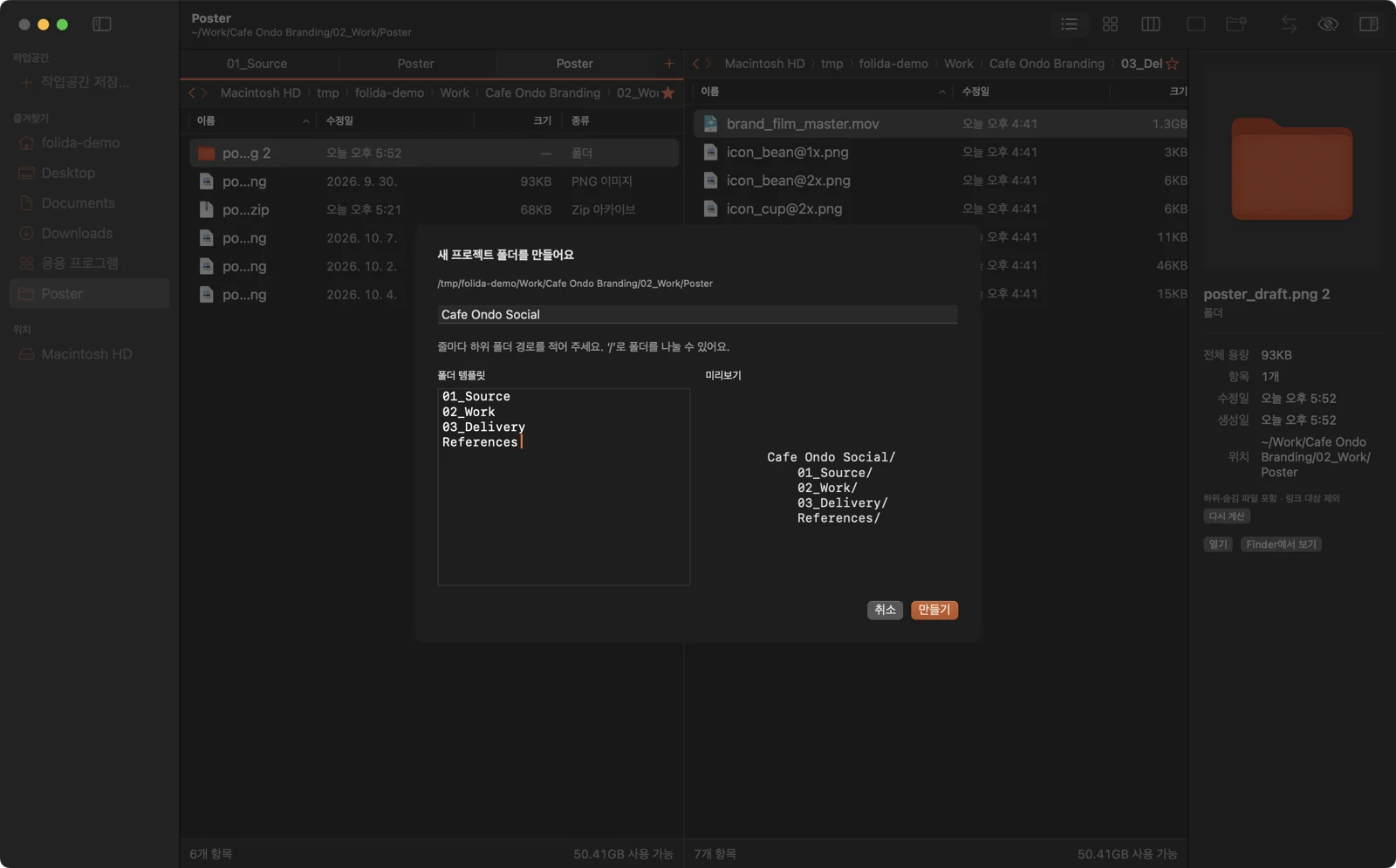
New project folder sheet with a template: 01_Source, 02_Work, 03_Delivery, References

새 프로젝트 폴더 ⌥⌘NNew project folder ⌥⌘N

프로젝트 이름만 입력하면 01_Source / 02_Work / 03_Delivery / References 같은 폴더 구조를 한 번에 만들 수 있습니다. 템플릿은 설정에서 원하는 구조로 바꿀 수 있습니다.Type a name and a structure such as 01_Source / 02_Work / 03_Delivery / References appears at once. Edit the template in Settings, one path per line.

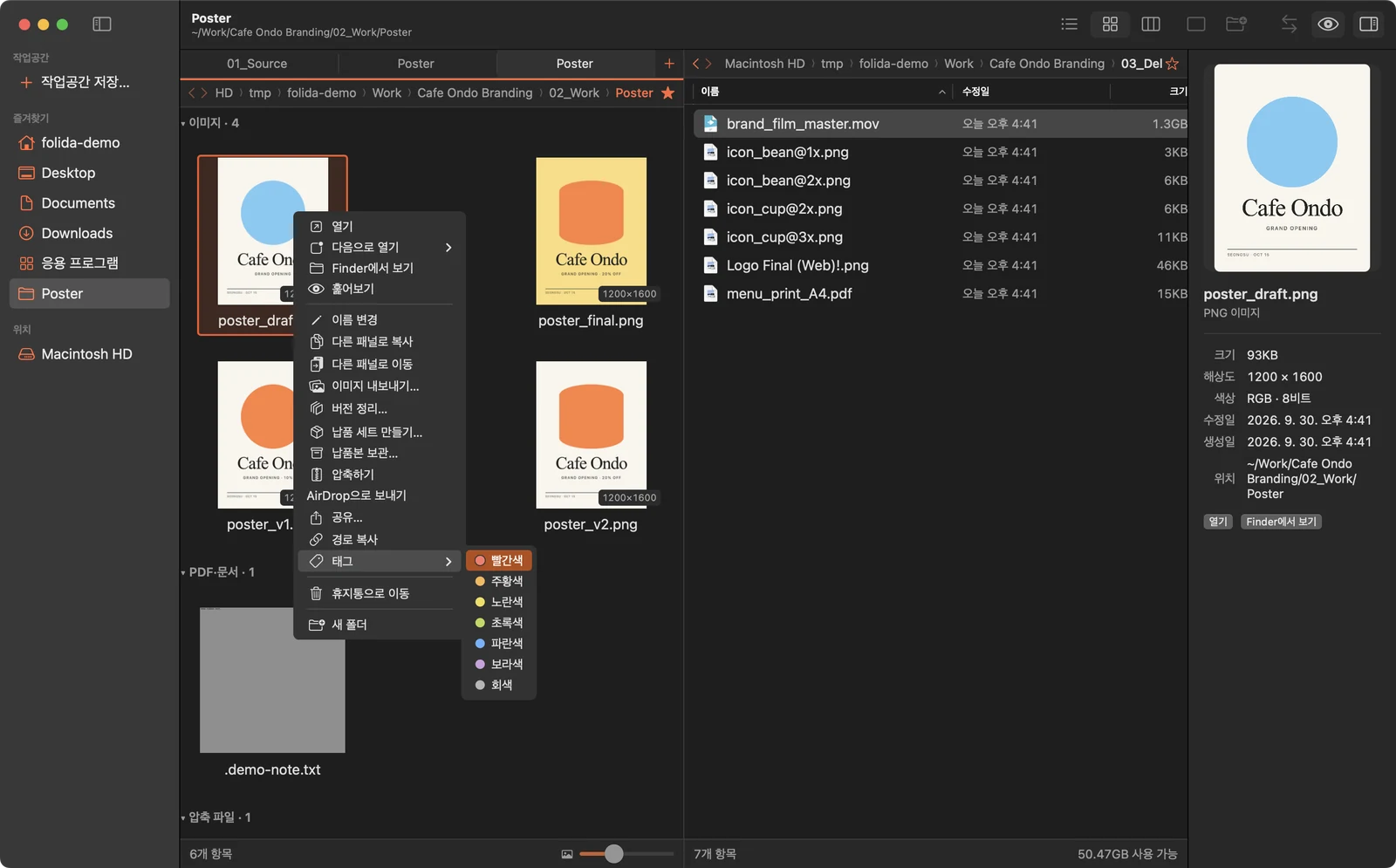
Right-click Tags submenu with seven Finder colours

Finder 색 태그Finder colour tags

우클릭 메뉴의 ‘태그’에서 Finder와 같은 7가지 색 태그를 붙이거나 뗄 수 있습니다. 태그는 목록과 그리드에 색 점으로 표시되고, Finder에서 붙인 태그도 함께 보입니다.Add or remove the seven Finder colours from the right-click menu. Other tags stay; colours show as dots, including ones set in Finder.

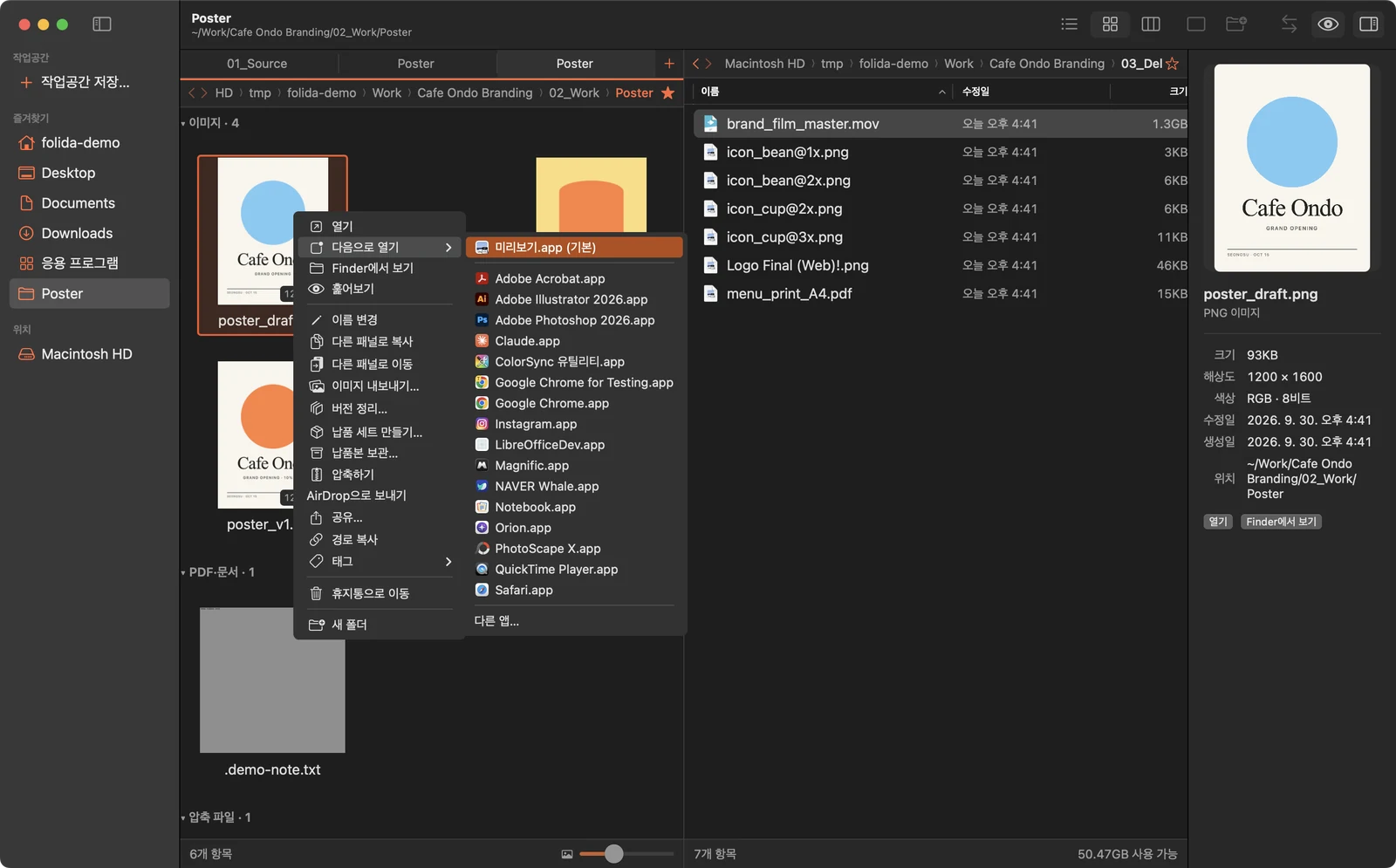
Open With submenu listing apps, default first

다음으로 열기Open with

선택한 파일을 열 수 있는 앱을 기본 앱부터 보여주고, 목록에 없는 앱은 ‘다른 앱…’에서 직접 고를 수 있습니다.Lists apps that can open every selected file, default first; “Other…” picks any app.

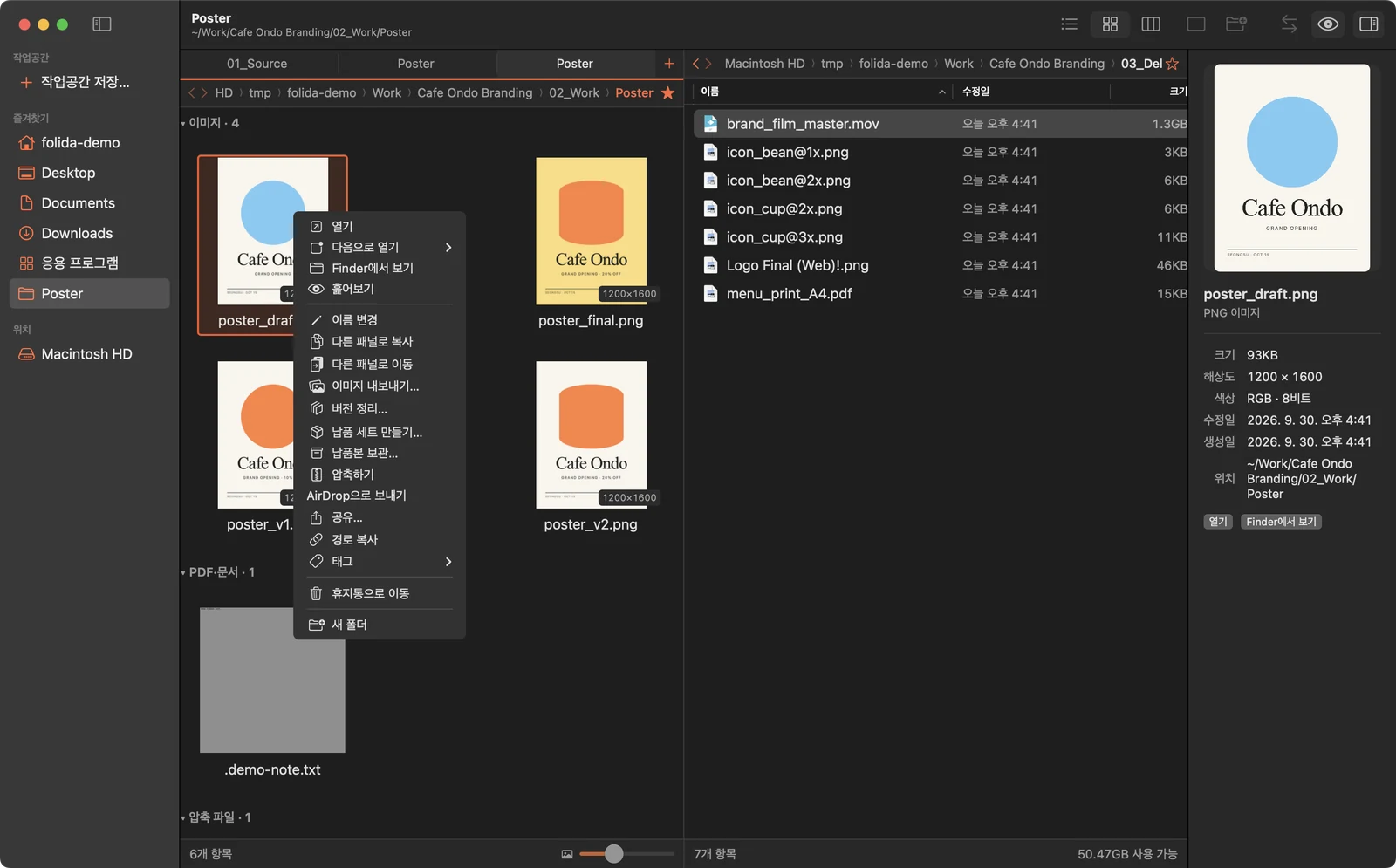
The full right-click menu

우클릭 메뉴Right-click menu

대부분의 기능을 우클릭 메뉴에서 바로 사용할 수 있습니다. 경로 복사, 새 탭에서 열기, AirDrop 보내기, Finder에서 보기도 함께 들어 있습니다.Most of the features above are one right-click away, along with Copy Path, Open in New Tab, AirDrop and Show in Finder.

10 — Keys

단축키Shortcuts

자주 쓰는 기능은 키보드로도 사용할 수 있습니다. F5 · F6 같은 기능키는 기존 듀얼 패널 파일관리자에 익숙한 배치를 따랐습니다.For when your hands are on the keyboard. Function keys like F5 and F6 follow the familiar commander-style layout.

패널 전환Switch paneTab
찾기 / 닫기Find / close⌘FEsc
훑어보기Quick LookSpace
이름 변경 (여러 개면 일괄)Rename (batch if several)F2
다른 패널로 복사 / 이동Copy / move to other paneF5F6
새 폴더New folderF7⇧⌘N
휴지통으로Move to TrashF8⌘⌫
버전 정리Version cleanup⌥⌘V
이미지 내보내기Image export⌘E
새 탭 / 탭 닫기New / close tab⌘T⌘W
목록 · 썸네일 · 컬럼List · grid · columns⌘1⌘2⌘3
크게 / 작게 / 기본Bigger / smaller / reset⌘+⌘−⌘0
상위 폴더Enclosing folder⌫⌘↑
뒤로 / 앞으로Back / forward⌘[⌘]
양쪽 패널 바꾸기Swap panes⌘U
반대 패널에 같은 폴더Same folder on other side⌘=
즐겨찾기에 추가Add to favourites⌘D
두 패널 폴더 비교Compare folders⇧⌘C
숨김 파일Hidden files⇧⌘.
미리보기 패널Inspector⌥⌘I
마지막 정리 되돌리기Undo last cleanup⌘Z
11 — Plate · Colours

ColoursColours

화면은 macOS 시스템 색과 글꼴을 따르고, 포인트 색은 레드오렌지 하나로 정했습니다. 폴더 아이콘에도 같은 색을 써서 파일 사이에서 폴더가 잘 보이도록 했습니다.The interface uses macOS system colours and type, with one red-orange point. Folder icons take that colour too, so folders stand out among files.

Brand · Light#F05828
Brand · Dark#FF6A3C
Window · LightSystem
Window · DarkSystem
Icon · Violet#B88FFF
Icon · Sky#6BCCFF
12 — Plate · App icon · 1024 px

앱 아이콘App icon

App icon: violet and sky panels on a dark square, an orange arrow badge between them
두 패널Two panels보라색과 하늘색 두 칸으로 나란히 열린 두 폴더를 표현했습니다.Violet and sky blocks for the two folders side by side.
주황 화살표 하나One orange arrow두 칸 사이의 주황 화살표로 파일을 옮기는 앱이라는 것을 나타냈습니다.An arrow between them says this is an app for moving files.
작은 크기에서도 또렷하게Clear at small sizes창 막대와 글줄 같은 세부 요소를 덜어내고 두 칸과 화살표만 남겨, Dock에서 작게 보여도 형태가 뭉개지지 않도록 했습니다.Details like a title bar and text lines were left out, keeping only the two panels and the arrow so it holds up small in the Dock.

파일을 찾고, 비교하고, 보내는 일을
한 창에서 끝낼 수 있도록 만든 앱입니다.
Built to find, compare and send files
without leaving one window.

기획 · 디자인 · 개발 — RIDA HAPlanning · Design · Development — RIDA HA ← Works